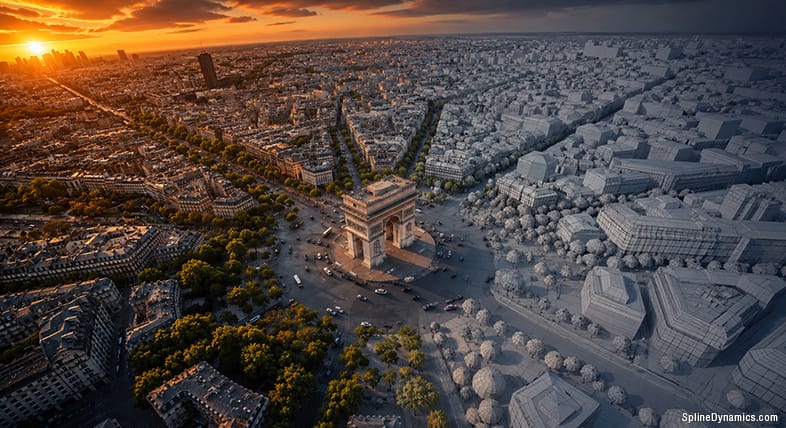
Reality capture, AI generation, and a quiet shift that is changing how digital worlds are built.
The Object That Looks Right — Until You Try to Use It
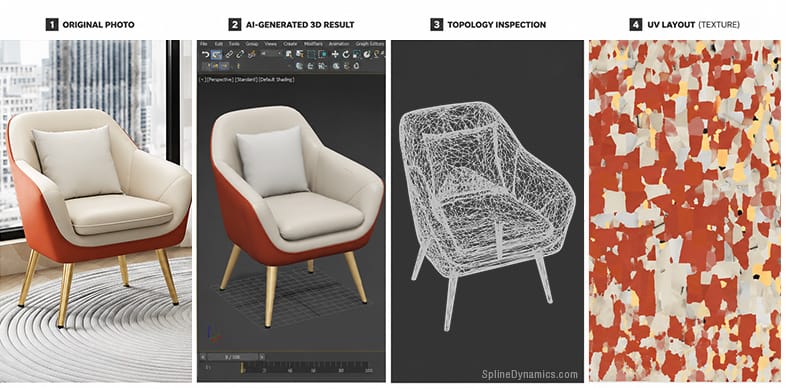
Consider the kind of test anyone can run in an afternoon to gauge how far image-to-3D generation has actually come. Take a few everyday objects — a potted plant, a sneaker, an office chair — add a couple of reference images pulled from the web, and run them through one of the better-known generators.
The office chair is the instructive case. In the viewport, at first glance, the result looks convincing: the silhouette is right, the proportions hold, and from a normal viewing angle it reads as a real, usable chair. It is the kind of preview that suggests the whole problem has already been solved. A render, or a closer look at the underlying topology, would start to complicate that impression — but the viewport sells it completely.
The illusion lasts exactly until someone tries to use it.
Attempt to swap the fabric on the seat and there is nothing to select: the seat, the backrest, the armrests, the metal base, and the wheels are all one continuous mesh, a single fused mass with no separable parts. Open the UVs to re-texture by hand and there are hundreds of disconnected islands with no logical layout, no grouping, no relationship to the object’s real structure. The materials are baked into one undifferentiated block — the system never understood that a metal caster and a fabric cushion are different things. What it produced is a photograph of a chair wrapped around a lump of geometry. It captured the appearance of an object without capturing the idea of one.
That gap — between something that looks right and something that can actually be worked with — is the most important thing such a test reveals. And it turns out to be a miniature of the single biggest shift now underway across the field.
An AI-generated asset may look convincing, yet still lack the structure required for real production use.
Something Has Quietly Changed in How We Populate a Scene
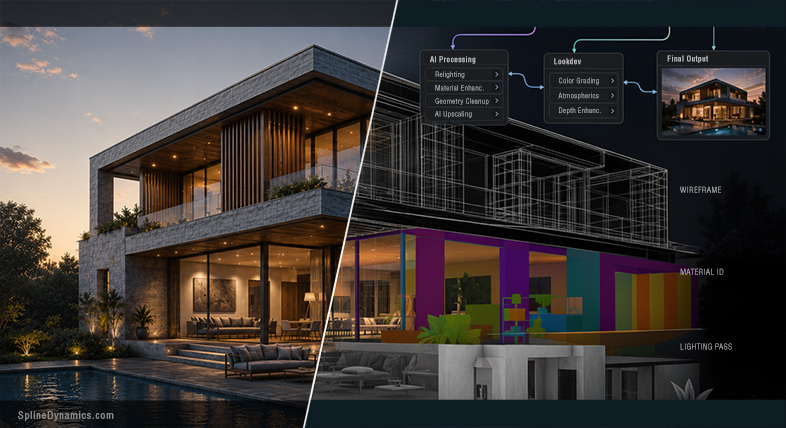
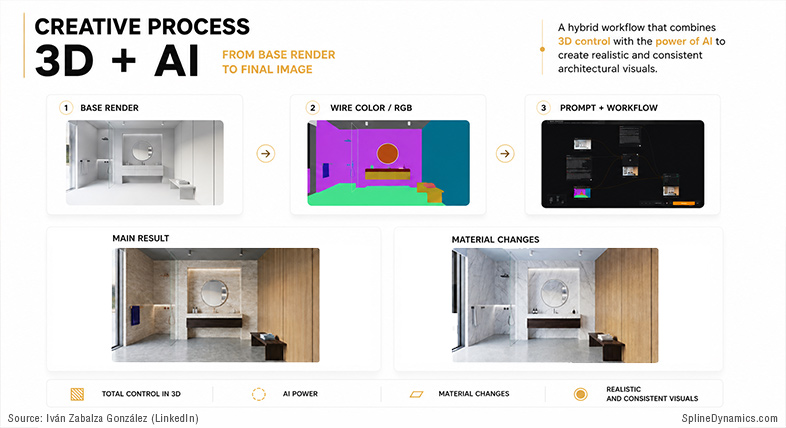
Most of the attention goes to the spectacular end of these technologies — a photoreal city materializing in seconds, an explorable world conjured from a sentence. The developments that matter more are quieter and more structural, and they are changing the very raw material of 3D work. (An earlier article traced a parallel version of this gap in AI-assisted ArchViz.)
For most of the history of CG, building a digital environment meant one thing: making it. We modeled objects, environments, cities, vegetation, and architectural context by hand, one asset at a time. Then asset libraries arrived and changed the economics — suddenly you could populate a scene with reusable content instead of authoring every screw and shrub yourself. Scanned-asset collections like Megascans pushed that even further, putting captured reality into libraries.
It is tempting to describe this as a sequence of eras, each replacing the last: manual creation, then libraries, then reality capture. But that framing is too clean, and it actually obscures what is happening. These approaches did not replace one another. They stacked. And in the last couple of years a fourth one has layered on top: AI generation.
So the more accurate picture is not a timeline of eras but a set of four coexisting ways of putting something into a scene, all of them now within reach of a single artist on a single project:
- Manual creation — modeling it yourself.
- Asset libraries — reusing what someone else made.
- Reality capture — recording something that physically exists.
- AI generation — synthesizing something plausible from a prompt or an image.
You might model a hero building, drop in a library sofa, scan the real site it will sit on, and generate a few background props to fill the corners — all in the same file. The interesting question is no longer which of these methods wins. It is what happens to the work of the artist when the world itself, at almost any scale, becomes available as raw material. Because that is the part that has genuinely changed.
Reality Is Now Available at Almost Every Scale
Pull the camera back slowly, and the most striking thing about the current moment is how little of the physical world is now out of reach.
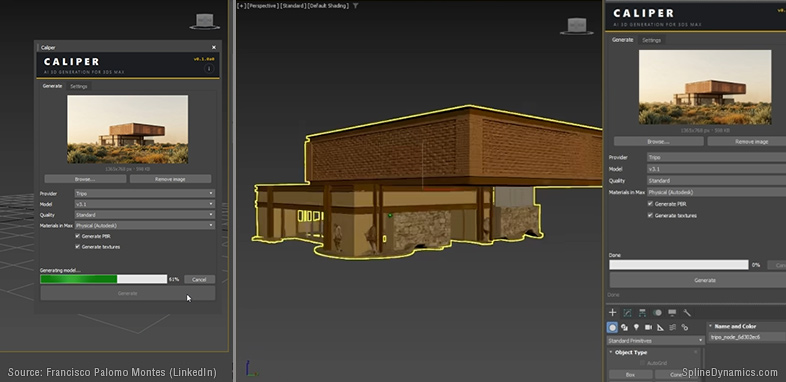
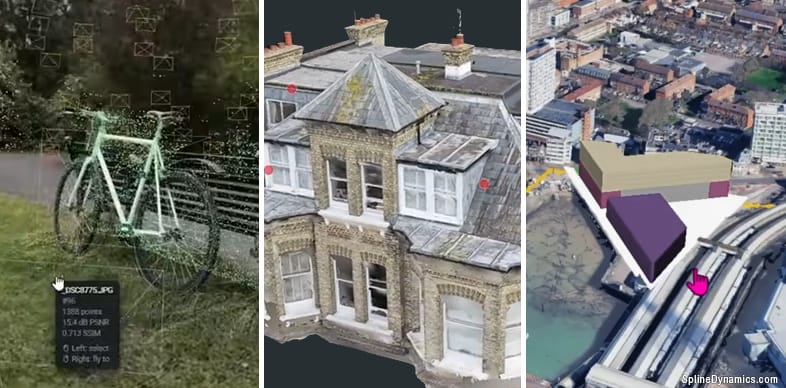
At the scale of a single object, a phone is often enough. Photogrammetry has been a reliable production tool for two decades, and tools like RealityScan turn a set of photographs into a measurable, editable mesh. Alongside it, AI generators now produce a textured object from a single image in seconds — though, as the chair showed, with a crucial caveat about what that output actually contains.
At the scale of a room, the barrier has dropped to consumer hardware. Matterport, iPhone and iPad LiDAR, and panoramic capture rigs can digitize an interior into a navigable space in an afternoon. The results are excellent for documentation and walkthroughs, if not yet for clean editing.
At the scale of a building, drone photogrammetry combined with terrestrial laser scanning has become genuinely production-mature — the default approach for heritage work, retrofits, and as-built documentation. At the scale of a neighborhood, aerial photogrammetry and GIS-derived data can reconstruct or procedurally generate the surrounding context that ArchViz has always struggled to build by hand.
And at the scale of a city, you no longer reconstruct at all — you stream. Google’s Photorealistic 3D Tiles, delivered through Cesium, cover thousands of cities and flow directly into Unreal, Unity, and increasingly into mainstream ArchViz renderers; D5 Render added city streaming so a design can be dropped into a real urban context in minutes. Beyond that, at the scale of an entire territory, satellite imagery and global elevation data have made planet-scale terrain a solved input.
The specific tools matter less than the cumulative picture they form. Walk down that ladder of scales — object, room, building, neighborhood, city, territory — and the same sentence keeps applying at every rung: acquiring reality is no longer the hard part. The cost and difficulty of getting the world into the computer is collapsing.
There is a quiet pattern hidden in that ladder, and it is worth noticing because it foreshadows the rest of this story. As you move up in scale, the fidelity you actually need goes down — nobody requires a metrically perfect city — but the editability of what you capture gets worse. A scanned prop you can almost work with. A streamed city you can essentially only look at. Control and scale move in opposite directions.
For architectural visualization, this lands on a very old, very specific pain point: context. The surroundings have always been disproportionately expensive to build — the neighboring buildings, the street, the vegetation, the city stretching to the horizon — none of it the actual subject of the project, all of it necessary to make that subject believable. Reality capture and streamed geospatial data quietly rewrite that economics. The context that once consumed days of modeling can increasingly be captured, downloaded, or streamed, which changes not only how long a scene takes to assemble but which parts of it an artist is even expected to build.
There is also a more pleasant surprise here, one that matters specifically for those chasing realism. The thing that has always betrayed CG environments as artificial is that they are too clean — uniform materials, perfect edges, no history. Real-world capture hands you, for free, exactly what is most expensive to author by hand: the wear, the grime, the asymmetry, the accumulated visual noise of a place that has actually existed. For perceived realism, that captured imperfection is often worth more than another million polygons. Reality, it turns out, is a better set dresser than we are.
From objects to entire cities, reality can now be captured and reconstructed at almost any scale.
The Line Between Capturing and Generating Is Disappearing
There is a distinction the previous section slid past on purpose, because it deserves its own moment. Walking through the scales meant quietly switching between two very different verbs: capturing what is actually there, and generating something plausible that is not. We increasingly do both, often in the same scene — and the boundary between them is dissolving.
Reconstruction measures. It tries to recover what exists, and when it fails, it fails honestly, with visible gaps and holes. Generation infers. It produces something coherent and complete, and when it fails, it fails far more dangerously — confidently and invisibly. A scan with a hole in it announces its own incompleteness. A generated façade with the wrong number of windows, or an interior that has quietly invented a room that was never there, looks perfect. Nothing in the image tells you it is wrong.
This is not a technical footnote. It is a question of trust. For a mood image or an establishing shot, plausible is entirely sufficient. For as-built documentation, a heritage record, or anything a real decision rests on, the difference between measured and invented is the whole point. As the two blend together, the hardest emerging skill is no longer operating either one — it is knowing, when you look at a finished result, where reality ends and inference begins.
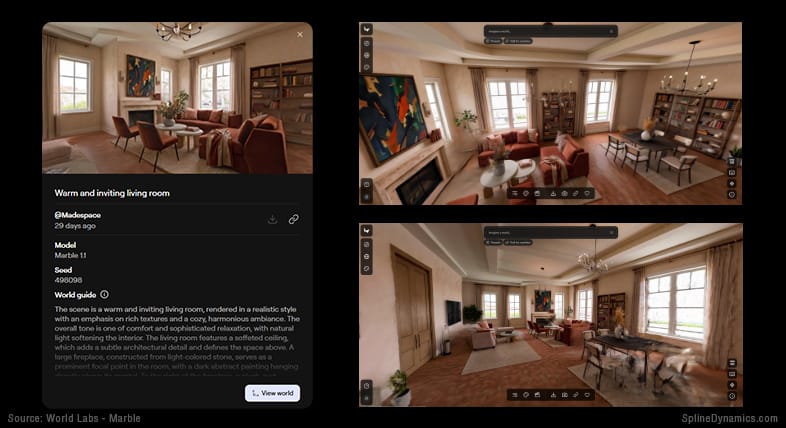
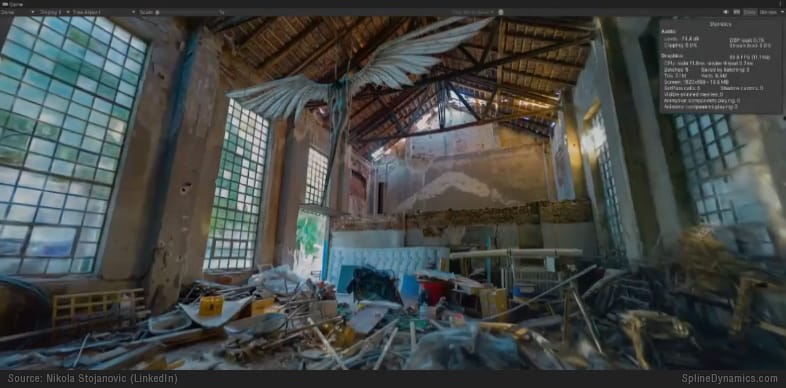
For a single emblem of how completely these worlds are merging, look at Gaussian Splatting. It arrived in 2023 as a way to render captured scenes — millions of tiny soft blobs reproducing a real place with photographic fidelity and real-time speed. But notice where it has spread: it is now the output of building scans and city captures, and it is also what AI “world models” like World Labs’ Marble emit when they generate an explorable space from a text prompt. The same representation sits at the end of a camera-based capture and at the end of a purely generative process. When the thing you measured and the thing you imagined arrive in the same format, the old border between them has effectively stopped existing.
Splatting keeps surfacing no matter which scale or method you start from, which is exactly why it is worth watching — not because it is the final answer to anything, but because it has become the shared substrate where capture and generation meet.
World Labs’ Marble generates explorable 3DGS spaces from images, video, or text prompts.
From Building Worlds to Directing Them
So if the raw material can be captured, or generated, or some seamless blend of the two — and if increasingly we cannot even tell which — then a quietly unsettling conclusion follows. The artist’s job was never really making the raw material. That was always a means to an end. And that part, the laborious construction of the stuff, is precisely the part now being automated and commoditized.
It is worth being careful here, because this is where the conversation usually collapses into the tired binary of “AI replaces artists” versus “AI changes nothing.” Neither is true. What is actually happening is a relocation of the creative effort, not its elimination.
The work is migrating out of construction and into direction. Less time spent modeling a generic sofa from scratch; more time spent deciding which captured or generated sofa belongs in this scene, how it should sit, how it should be lit, and whether it is telling the right story. Less time reconstructing the world; more time selecting from it, correcting it, integrating heterogeneous pieces — a scan here, a generated prop there, a streamed city behind — into something coherent. The artist becomes less a builder and more a director of spatial information: a curator, an editor, an integrator, and increasingly the person responsible for judging what is true and what merely looks true.
That is a more demanding role, not a lesser one. It rewards taste, intent, and judgment over raw modeling labor, and it concentrates the creative act rather than dissolving it.
One thing any honest version of this argument has to state plainly: not all CG is about photorealism, and this entire shift is largely irrelevant to huge parts of the field. Stylized work, concept art, animation, motion graphics, illustration — the whole universe of imagery that is not trying to reproduce reality — reality capture barely touches any of it. What is described here expands one toolbox; it does not redraw the future of all digital art. Capturing the world is enormously useful when the goal is to depict the world. When the goal is to invent one that never existed, the artist is still, gloriously, on their own. Both truths need to sit in the same article without one crowding out the other.
Captured reality and traditional polygonal assets increasingly coexist within the same production workflow.
Capturing Reality Is Easy. Editing It Is Hard.
Here is the catch in the artist’s new job description, and it is the conclusion the evidence keeps pointing to from every direction. Directing captured reality assumes you can actually change it. And that is exactly where everything still falls apart.
Which brings us back to the chair.
The reason that generated office chair was unusable was not that the geometry was bad — at first glance, it looked surprisingly convincing. It was that the result had appearance without structure: no separable parts, no logical materials, no clean UVs, no hierarchy. A photograph inflated into three dimensions. And once that is clear, the same fundamental problem appears everywhere across the capture-and-generation landscape, just wearing different clothes.
Photogrammetry meshes are editable, but they arrive heavy, noisy, and dense, demanding retopology and cleanup before they behave like an asset you built yourself. Point clouds are reference data, not something you can directly model. Gaussian splats — for all their photographic beauty — have no surface to grab, no topology, no UVs; editing them today means crude cropping, hybrid compositing, or converting them to a mesh and losing much of what made them special. AI-generated meshes carry the structural emptiness the chair displayed. In every case the pattern is identical: getting reality in has become easy and cheap, and making it editable, controllable, and production-ready has barely moved.
This, more than any single technology, is the real story — and it is almost the inverse of how the industry’s costs used to work. For decades the expensive part was acquisition: building or modeling the asset. Editing what you had was trivial, because you had built it from clean, intentional, well-understood parts. That has flipped completely. Acquisition is becoming nearly free. The expense, the friction, the unsolved frontier, is now control.
Capturing reality is easy. Editing reality is hard.
If there is one sentence to keep from all of this, let it be that one.
The Hardest Thing to Remove Is Light
If editability is the wall, one brick in it is harder than all the others — and the most revealing about where this is heading.
Capturing a scene does not just record its shape and color. It records the light that happened to be falling on it at that moment. The shadows, the highlights, the warm afternoon glow or the flat overcast gray — all of it fused permanently into the data. A scan made at noon is a noon scene forever. The illumination is baked in, inseparable, frozen.
For a traditional CG asset this would be unthinkable. The entire premise of a CG scene is that lighting is something we control — that we can move the sun, change the time of day, swap a cloudy afternoon for golden hour, and watch the materials respond correctly. To make captured reality behave that way, you would need to do three genuinely hard things: strip out the baked-in lighting (delighting), recover the true material properties hidden underneath, and then relight freely under any conditions you choose.
Part of this is further along than it used to be. Pulling a flat, tileable material out of a single photograph — a patch of wood, brick, or fabric — is increasingly viable: Adobe’s Substance 3D Sampler can generate PBR maps from one image and actively strip shadows and highlights from the albedo, D5 Render bakes a comparable photo-to-material feature directly into an ArchViz renderer, and research like Material Palette and the more recent MatE pushes single-image material extraction further. These work well precisely because they tackle the constrained problem: an isolated surface, not a whole scene.
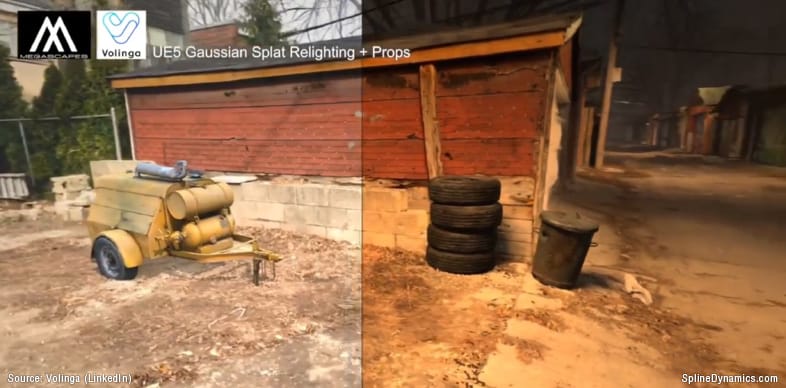
The harder, unsolved version is everything at once — delighting, recovering materials, and relighting across a full captured scene with complex geometry and global illumination fused into it. There is an enormous and fast-moving body of research attacking exactly this, and a handful of early tools — like the latest releases of Chaos V-Ray and Vantage — are beginning to bring partial relighting of captured data into production pipelines. But these remain narrow, controlled cases; the broader problem of full scene relighting under arbitrary new lighting remains largely unsolved in production. The reason is fundamental rather than incidental: separating “what color is this surface” from “how was it lit” out of a single observation is mathematically ambiguous. AI can bring powerful priors to that guessing game, but priors can also hallucinate — and that returns us to the trust problem.
It is fitting that light, of all things, is the final lock. Lighting has always been where ArchViz and CG cross from the technical into the artistic — where a correct image becomes a beautiful one. That the freedom to relight is the thing captured reality most stubbornly withholds says something about which part of this craft is hardest to automate. It is, not coincidentally, the most artistic part.
Volinga demonstrates one of the first practical approaches to relighting captured Gaussian splatting scenes.
What’s Left for the Artist to Decide
The instinct, approaching these tools, is to ask how good the geometry is. The more revealing question turns out to be a different one: can anything actually be done with what comes out? For now, the honest answer is — not nearly as much as the polished previews imply.
That is not a pessimistic place to land. It is an oddly reassuring one. The parts of the work being automated are the parts that were always means to an end: the construction, the acquisition, the laborious assembly of raw material. What remains stubbornly difficult — editing, separating, relighting, integrating, and above all judging what is true and what merely looks true — is precisely the part that was always closest to authorship.
A new generation of systems is racing at this frontier. Reconstruction methods now rebuild a scene from a handful of photos in about a second; world models generate explorable spaces from a sentence; open standards like OpenUSD and glTF — the latter now absorbing Gaussian splatting — are quietly building the plumbing to move all of this between tools. The momentum is real, and AI is the most plausible candidate to eventually bridge the gap between captured reality and editable reality. But that bridge is a direction of travel, not a destination already reached.
Which is why the whole trajectory leads not to a conclusion but to a question. That we will be able to capture the world, and increasingly to generate it, is no longer seriously in doubt. The harder thing, the one still without an answer, is what comes after acquisition.
If capturing reality is becoming effortless, and generating it increasingly possible, how do we turn that endless supply of raw material into something an artist can truly control — editable, relightable, structured, and free — and who gets to decide which parts of a captured world are worth keeping?
Prefer to watch a short video about this?
References & Further Reading
Reality capture, neural reconstruction, AI 3D generation, and the emerging standards that connect them are fields moving quickly; the sources below are best treated as snapshots of late 2025 and early 2026.
Gaussian Splatting & Radiance Fields
- Kerbl et al., 3D Gaussian Splatting for Real-Time Radiance Field Rendering, SIGGRAPH 2023 — the origin paper.
- Chen et al., A Survey on 3D Gaussian Splatting — continuously updated overview (2024–2026).
- Radiance Fields — community hub clarifying NeRF vs. splat vs. radiance-field terminology.
Reality Capture & Photogrammetry
- RealityScan / RealityCapture (Epic Games) — fast hybrid photogrammetry; RealityScan 2.1 added SLAM-scanner support (November 2025).
- Esri ArcGIS Reality — produces both accurate meshes and Gaussian splats from the same capture (2025).
- Matterport for iPhone with LiDAR support (February 2026); on LiDAR’s limits with glass and reflective surfaces.
Geospatial Context at City & Territory Scale
- Google Photorealistic 3D Tiles in Cesium ion — thousands of cities, streamed into major engines.
- D5 Render 2.11: Cesium integration for ArchViz (September 2025).
AI Generation: Image-to-3D & World Models
- Tencent Hunyuan3D 2.1 — open-source image-to-3D with PBR material synthesis (2025).
- Comparative reviews of Meshy, Tripo, TRELLIS and others — Scenario; BuildMVPFast (“prototype quality is easy now; production quality is not”).
- World Labs, Marble world model (November 2025) and the World API (January 2026).
Feed-Forward Neural Reconstruction
- Wang et al., VGGT: Visual Geometry Grounded Transformer, CVPR 2025 Best Paper — full reconstruction in under a second.
- NAVER Labs, DUSt3R and MASt3R — reconstruction without known camera poses.
Material Extraction, Delighting & Relighting (the Open Problem)
- Adobe Substance 3D Sampler — Image to Material (AI Powered) — single-image PBR generation with albedo de-lighting.
- D5 Render — AI PBR Material Snap — photo-to-PBR inside an ArchViz renderer.
- Lopes et al., Material Palette: Extraction of Materials from a Single Image, CVPR 2024.
- Zhang et al., MatE: Material Extraction from Single-Image via Geometric Prior (December 2025).
- Awesome-Relighting — a living index of delighting, relighting, and inverse-rendering research.
- Volinga — relighting Gaussian-splat data inside Unreal Engine (October 2025).
- KIRI Engine: 3DGS-to-Mesh — converting splats to editable geometry.
Standards (the Connective Plumbing)
- Alliance for OpenUSD: Core Specification 1.0 (December 2025).
- Khronos: glTF Gaussian Splatting extension release candidate (February 2026; ratification targeted Q2 2026).
Related Reading on This Blog
- AI-Assisted ArchViz: Beyond the Hype — the companion piece on how AI is layering into production ArchViz workflows.
- Updated Insights into 3D Gaussian Splatting Techniques for Real-Time Rendering — background on the representation at the center of this shift.
Written by Hernán A. Rodenstein, Founder of Spline Dynamics.
This article is part of an ongoing research and experimentation process around emerging 3D technologies, reality capture, and production workflows at Spline Dynamics.
Studios interested in custom 3ds Max tools, workflow automation or pipeline optimization can learn more about our Custom 3ds Max Tool Development Services.
Affiliate Disclosure
Some links in this article may be affiliate links. If you decide to purchase through them, we may earn a small commission at no extra cost to you. These commissions help support the creation of free tutorials, articles, and tools on Spline Dynamics. All opinions expressed are our own, and we only recommend products that we believe provide real value to the CG and ArchViz community.