Index
- Version Requirements / License / Installation
- Overview
- Core Workflow
- Main Panel
- Analysis Report
- Clean Hierarchy
- Advanced Settings
- Toolbox
- Other Considerations
- Help/About
- Contact/Support
1.1 Version Requirements
Autodesk 3ds Max 2019 and higher.
Hierarchy Guardian has been tested succesfully on 3ds Max 2019 to 2026. It should also work properly on future versions. However, if you experience any issue, please report it to contact@splinedynamics.com
1.2 License
With each purchase, depending on what you choose, you get a 1-year license or a lifetime license. It is a node-locked license (tied to the computer, not to the user).
The Regular License lets you use the product in 2 different workstations. It comes with 2 license keys (each key is linked to 1 computer).
The Corporate License allows you to activate the plugin on up to 10 workstations. It comes with 2 license keys (eack key is linked to up to 5 computers).
You will get free upgrades for the same major version of the product.
1.3 Installation
- Unzip the content of the .zip file and then drag the “.mzp” file onto one of your viewports in 3ds Max . The plugin automatically installs itself.
- A dialog called “Software Activation” pops-up. Enter your license key in the text field.
(You received 2 license keys by email when you purchased the product) - If the license key is correct, the plugin will start.
- To add the plugin’s icon to a toolbar, go to the Menu > Customize > Customize user interface…
- Go to the “Toolbars” tab and pick the category “Spline Dynamics”.
- The plugin’s name (Hierarchy Guardian) must be listed there. Just drag it onto a toolbar and you’re done!
2. Overview
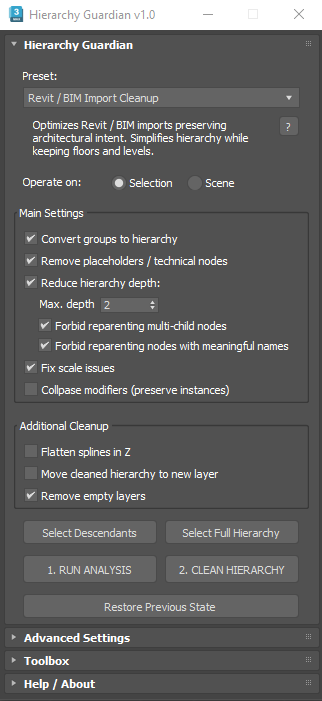
Hierarchy Guardian is a professional hierarchy analysis and cleanup tool for Autodesk 3ds Max, designed to safely simplify complex scene hierarchies without compromising production stability.
The User Interface (UI) has 4 rollouts:
- Main Panel (Core workflow)
- Advanced Settings (Protected Objects, Safety)
- Toolbox (Individual operations for manual workflows)
- Help / About (Helpful links, plugin credits)
Scenes imported from Revit, BIM, CAD, SketchUp, FBX, or other third-party sources often contain deep and chaotic hierarchies, excessive group nesting, technical placeholder nodes, inherited scale issues, and unstable transforms. These problems are not always visible at first glance, but they frequently cause issues later in the pipeline: broken instancing, animation errors, lighting problems, unreliable exports, or unexpected behavior during rendering.
Hierarchy Guardian addresses these problems using a safety-first, analysis-driven workflow.
Instead of blindly modifying the scene, the tool analyzes the hierarchy first, clearly reporting what will be changed, what will be preserved, and how risky the cleanup will be — before any action is applied.
The goal is not aggressive flattening, but predictable, controlled hierarchy normalization, suitable for real production environments and professional ArchViz pipelines.
3. Core Workflow
Hierarchy Guardian follows a clear, controlled workflow designed to minimize risk and maximize predictability when cleaning complex hierarchies.
The typical workflow is:
- Select a preset suitable for your source data (optional)
Presets provide optimized starting configurations for common import scenarios such as Revit or BIM data.
You may also work without presets and configure all options manually. - Select the scope
Choose whether the tool operates on:- Selection – Only selected objects and their hierarchies
- Entire Scene – All scene hierarchies
- Adjust settings and additional cleanup tasks (if needed)
Fine-tune how hierarchies are converted, reduced, and protected.
Optional cleanup tasks can be enabled depending on the type and quality of the imported data. - Run Analysis
The scene is scanned in read-only mode.
No changes are applied at this stage. - Review the Analysis Report carefully
The report clearly describes:- What will be modified
- What will be preserved
- Which objects are protected
- Detected risks and estimated cleanup impact
- Run Clean Hierarchy
The cleanup is executed exactly as previewed in the Analysis Report.
All safety mechanisms (Hold snapshot and optional backups) are created before any change is applied. - Validate results
Post-cleanup validation checks for unexpected changes.
If needed, the scene can be instantly restored to the previous safe state.
This workflow ensures that hierarchy cleanup remains fully predictable, reversible, and production-safe at all times.
4. Main Panel
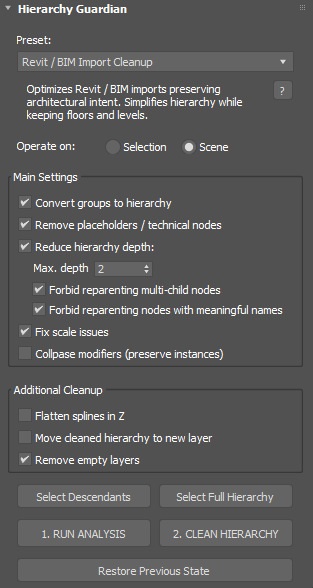
The Main Panel is the central control area of Hierarchy Guardian.
From here you define how the scene will be analyzed and which cleanup actions will be applied.
It is designed to guide the user through a predictable, step-by-step workflow.
It is divided into 5 sections:
- Presets
- Scope
- Main Settings
- Additional Cleanup
- Action Buttons
Presets
Presets provide optimized starting configurations for common import scenarios.
They define how Hierarchy Guardian interprets hierarchy significance, depth, and cleanup aggressiveness.
Using a preset is optional, but strongly recommended as a starting point.
CAD Import Cleanup (Aggressive)
Designed to clean and flatten imported CAD scenes where hierarchy has no real structural meaning.
Behavior:
- Converts all groups into real hierarchy
- Normalizes hierarchy depth into a flat structure
- Ignores any imported structural significance
- Removes placeholder and technical nodes
- Fixes inherited scale and transform issues
Recommended for:
DWG / DXF imports, technical drawings, and scenes with no meaningful hierarchy.
Revit / BIM Import Cleanup
Optimized for BIM-based imports while preserving architectural intent.
Behavior:
- Converts imported groups into real hierarchy
- Simplifies deep hierarchies while preserving key structural levels
- Detects and preserves significant architectural nodes
- Removes placeholder and technical nodes
- Fixes inherited scale issues when necessary
Recommended for:
Revit, FBX, and Navisworks imports with meaningful building structure.
ArchViz Scene Cleanup (Safe)
A conservative preset designed to clean scenes without altering their structure.
Behavior:
- Preserves existing hierarchy and group structure
- Detects and preserves all significant nodes
- Removes only clearly unnecessary helpers or technical nodes
- Does not normalize hierarchy depth
- Does not modify inherited transforms unless critical
Recommended for:
Existing ArchViz scenes, collaborative projects, and late-stage production.
Asset Library Normalizer
Prepares assets for clean storage and reuse in asset libraries.
Behavior:
- Converts groups into a clean hierarchical structure
- Normalizes hierarchy into a single-root asset layout
- Ignores non-essential structural complexity
- Removes placeholder and technical nodes
- Fixes inherited scale issues for consistency
Recommended for:
Props, furniture, vegetation, and downloadable assets.
Ultra Flatten (Expert)
An aggressive preset intended for troubleshooting and last-resort cleanup.
Behavior:
- Converts all groups into hierarchy
- Flattens the hierarchy to a minimal structure
- Ignores all structural significance
- Removes placeholder and technical nodes
- Forces cleanup of inherited transform issues
Warning:
This preset may significantly alter scene structure.
Recommended for:
Broken scenes, extreme cases, and diagnostic cleanup.
Custom Configuration
Indicates that the current settings were modified manually and no longer match any predefined preset.
Scope
Defines which part of the scene will be analyzed and cleaned.
- Selection – Operates only on selected objects and their hierarchies
- Scene – Operates on all hierarchies in the scene
Using Selection is recommended for testing and validation before running a full-scene cleanup.
Main Settings
These options control how hierarchy cleanup is performed.
- Convert groups to hierarchy
Replaces group structures with real parent-child hierarchies.
In structural groups that form a complete hierarchy, it replaces 3ds Max groupheads with point helpers (leaving them as placeholders). You can optionally remove them later. - Remove placeholders / technical nodes
Deletes non-renderable helpers and imported technical nodes. - Reduce hierarchy depth
Limits hierarchy depth to a defined maximum level.- Max depth – Target depth for hierarchy reduction (e.g. 2 levels)
- Forbid reparenting multi-child nodes – Prevents unsafe restructuring of complex branching nodes
- Forbid reparenting nodes with meaningful names – Avoids altering nodes that likely carry semantic or architectural meaning.
- Fix scale issues
Detects and corrects inherited or broken scale transforms. - Collapse modifiers (preserve instances)
Collapses modifier stacks while always preserving instance relationships.
Additional Cleanup
Optional cleanup tasks that can be enabled as needed:
- Flatten splines in Z
Ensures all spline shapes are flattened along the Z axis. Useful for imported CAD data. - Sanitize object names
Removes special characters and resolves duplicated names. - Move cleaned hierarchy to new layer
Organizes cleaned objects into a dedicated layer. - Remove empty layers
Deletes unused layers after cleanup.
Action Buttons
Selection Tools
- Select Descendants – Selects all child nodes of the current selection to ensure processing full hierarchy branches.
- Select Full Hierarchy – Selects the entire hierarchy tree of selected objects
Run Analysis
Scans the scene in read-only mode and generates a detailed Analysis Report.
No changes are applied during this step.
Clean Hierarchy
Executes the cleanup exactly as previewed in the Analysis Report.
All safety mechanisms are created before any change is applied.
Restore Previous State
Instantly restores the scene to the last safe state using Hold snapshots or backups.
5. Analysis Report
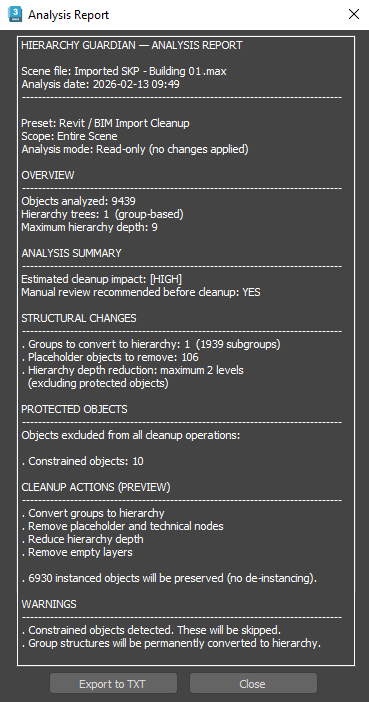
The Analysis Report is the core of Hierarchy Guardian’s workflow.
It provides a complete, read-only diagnosis of the scene hierarchy before any cleanup operation is executed.
Unlike traditional cleanup tools that apply changes immediately, Hierarchy Guardian always analyzes the scene first and clearly reports what will happen, what will be preserved, and where potential risks exist.
Running an analysis does not modify the scene in any way.
Purpose of the Analysis Report
The Analysis Report is designed to help you:
- Understand the current hierarchical structure of the scene
- Identify problematic or overly complex hierarchies
- Detect technical or placeholder nodes
- Identify protected or sensitive objects
- Evaluate the potential impact of the cleanup before applying it
This allows you to make informed decisions and adjust settings safely before proceeding.
Overview Section
The Overview section provides a high-level snapshot of the scene:
- Number of objects analyzed
- Number of hierarchy trees detected
- Maximum hierarchy depth
- Whether the scene is group-based or hierarchy-based
This information gives immediate context about scene complexity.
Analysis Summary
The Analysis Summary evaluates the expected impact of the cleanup process:
- Estimated Cleanup Impact (Low / Medium / High)
- Recommendation for manual review before cleanup
High-impact results typically indicate deep hierarchies, large numbers of groups, or complex structural changes.
Structural Changes
This section previews the structural modifications that would be applied if cleanup is executed, including:
- Group-to-hierarchy conversions
- Placeholder and technical node removal
- Hierarchy depth reduction
- Number of affected subgroups
All values shown here are previews only.
Protected Objects
Hierarchy Guardian automatically detects and excludes sensitive objects from cleanup operations based on your settings, including:
- Constrained or animated objects
- Instanced objects
- Proxies
- XRefs
- Cameras and lights
The report clearly lists how many protected objects are detected and skipped.
Cleanup Actions (Preview)
This section summarizes the cleanup actions that would be executed, such as:
- Converting groups to hierarchy
- Removing placeholders and technical nodes
- Reducing hierarchy depth
- Fixing scale issues
- Collapsing modifier stacks
- Additional cleanup operations (flattening splines, removing empty layers, etc.)
It also explicitly reports how many instanced objects will be preserved, ensuring that instancing relationships are never broken.
Warnings
Warnings highlight conditions that require special attention, such as:
- Detected constraints or animations
- Permanent group-to-hierarchy conversions
- Structural operations that cannot be reverted individually
Warnings do not prevent cleanup, but they indicate areas where careful review is recommended.
Using the Analysis Report Effectively
A recommended workflow is to:
- Run Analysis
- Review the report carefully
- Adjust settings if necessary
- Run Analysis again
- Proceed to cleanup only when the report matches your expectations
The Analysis Report acts as a technical validation document for the cleanup process.
6. Clean Hierarchy
The Clean Hierarchy operation applies the changes previewed in the Analysis Report in a controlled and predictable way.
Hierarchy Guardian never performs blind cleanup operations.
The cleanup process is always based on the most recent valid analysis.
Relationship Between Analysis and Cleanup
- Clean Hierarchy executes the exact operations previewed in the Analysis Report
- If settings are changed after running an analysis, a new analysis should be performed
- Running cleanup without reviewing the analysis is not recommended
This guarantees consistency between preview and execution.
Safety System
Before applying any structural changes, Hierarchy Guardian activates its safety mechanisms:
- Automatic Hold snapshot of the scene
- Optional full scene backup
- Per session
- Automatically enabled for high-impact cleanups
These systems ensure that the original scene state can always be restored.
Cleanup Execution
During the cleanup process, Hierarchy Guardian may perform the following operations, depending on the selected preset and settings:
- Convert groups into clean hierarchical structures
- Reduce excessive hierarchy depth
- Remove placeholder and technical nodes
- Fix inherited scale and transform issues
- Collpase modifier stacks (preserving instance condition)
- Apply optional additional cleanup tasks
All protected objects are excluded, and object instancing is always preserved.
Post-Cleanup Validation
After cleanup is completed, Hierarchy Guardian performs a validation pass to detect:
- Unexpected structural changes
- Issues affecting protected objects
- Deviations from the analyzed preview
If any issue is detected, you can immediately revert the operation.
Restore Previous State
At any point after cleanup, you can use Restore Previous State to:
- Revert to the last Hold snapshot
- Recover the scene from a safety backup
This allows you to test cleanup results without risk.
Expected Results
A successful cleanup produces:
- Clean, readable hierarchies
- Reduced structural complexity
- Stable transforms and scales
- Production-ready scenes suitable for animation, rendering, or export
The goal is not just a cleaner hierarchy, but a predictable and safe result you can trust in real production pipelines.
7. Advanced Settings
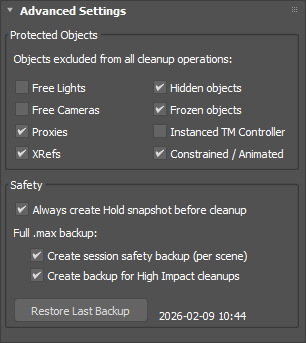
The Advanced Settings rollout defines which objects are excluded from cleanup operations, and how scene safety is handled before any destructive action is performed.
These options allow you to protect sensitive scene elements and control how backups are created.
Protected Objects
This section defines object categories that will be excluded from all cleanup operations, regardless of the active preset or cleanup settings.
Protected objects are analyzed and reported, but never modified, reparented, deleted, or altered.
Available protection filters:
- Free Lights
Prevents any cleanup operation from affecting non-target light objects. - Free Cameras
Excludes non-target cameras from all hierarchy and cleanup operations. - Proxies
Protects proxy objects (render engine proxies) from being modified or removed. - XRefs
Ensures 3ds Max referenced objects remain untouched. - Hidden objects
Excludes hidden objects from cleanup operations. - Frozen objects
Prevents frozen objects from being modified. - Instanced TM Controller
Protects objects using instanced transform controllers. - Constrained / Animated
Excludes objects that are constrained, targeted or animated, avoiding unintended animation or rig breakage.
These protections are especially important in production scenes where cameras, lights, proxies, or animated elements must remain stable.
Safety
Hierarchy Guardian applies a safety-first approach before running any cleanup operation.
Hold Snapshot
- Always create Hold snapshot before cleanup
Automatically creates a Hold state before running cleanup, allowing immediate restoration using 3ds Max’s Hold/Fetch system.
This option is strongly recommended and enabled by default.
Full .max Backup
Optional full scene backups can be created in addition to the Hold snapshot.
- Create session safety backup (per scene)
Creates a full .max backup file once per scene during the current session. - Create backup for High Impact cleanups
Automatically creates a full scene backup when the analysis detects a high-impact cleanup.
Restore Last Backup
- Restore Last Backup
Restores the most recent full scene backup created by Hierarchy Guardian.
The timestamp of the last backup is displayed for reference.
8. Toolbox
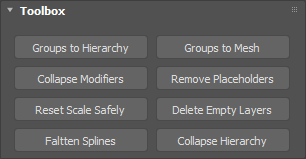
The Toolbox rollout provides a set of standalone utility actions that can be applied independently from the main analysis-driven workflow.
These tools operate directly on the current selection and do not require running a full analysis.
They are useful for quick fixes, targeted cleanup, or manual interventions.
Available Tools
- Groups to Hierarchy
Converts selected groups into a real parent-child hierarchy. - Groups to Mesh
Converts every selected group structure into a single mesh object, by attaching its components. - Collapse Modifiers
Collapses the modifier stack on selected objects. - Remove Placeholders
Removes technical placeholder or helper nodes from selection, preseving the hierarchy structure. - Reset Scale Safely
Resets the scale of selected objects in a hierarchy while preserving the overall structure integrity. - Delete Empty Layers
Removes empty layers from the scene. - Flatten Splines
Flattens selected spline objects along the Z axis. - Collapse Hierarchy
Reduce selected hierarchy trees or branches to a single depth level. - Sanitize object names
Removes special characters and resolves duplicated names on selected objects.
WARNING!
Toolbox actions are direct operations.
Use them carefully, especially in production scenes.
9. Other Considerations
This section highlights important notes and best practices to help you get the most reliable results when working with Hierarchy Guardian in production environments.
Always run Analysis first.
The Analysis Report is a core part of the workflow and should be reviewed before applying any cleanup.
Presets are starting points.
They provide informed defaults, but settings should always be reviewed and adjusted per scene.
Pay attention to High Impact warnings.
When a cleanup is classified as high impact, manual review and full backups are strongly recommended.
Protected objects are intentionally skipped.
This ensures scene stability, even if some hierarchy complexity remains.
Use the Toolbox for targeted operations.
Toolbox actions apply specific tasks without full scene analysis and are best suited for small, controlled changes.
Validate results after cleanup.
Review the hierarchy and restore the previous state if unexpected changes are detected.
Hierarchy Guardian does not perform custom object renaming or layer organization
It focuses strictly on hierarchy structure and safety, allowing it to integrate cleanly into professional pipelines.
10. Help / About
This section includes:
- Help links (tutorials, documentation, SplineDynamics Youtube Channel)
- Plugin Credits
- A button to activate your license for this tool
11. Contact / Support
For customer support or making suggestions or business proposals, please don’t hesitate to contact us through this Contact Form.
You can also write us directly to contact@splinedynamics.com.
All feedback is greatly appreciated. We will try to answer all your inquiries as soon as possible.
Enjoy Hierarchy Guardian!
