Posted on Leave a comment

Custom 3ds Max Tools That Transformed Real Production Workflows: Three Case Studies

Over the last few years, I’ve helped several studios improve their production pipelines by developing custom tools tailored to their real 3D workflows. Each project came with different challenges, but all of them had the same purpose: to eliminate repetitive work, reduce errors, and let artists focus on creativity instead of manual tasks.

Many ArchViz studios and 3D teams still spend countless hours performing actions that could easily be automated. When a workflow depends on repeating the same steps across dozens—or hundreds—of assets, custom 3ds Max scripting can make an enormous difference. These three real-world examples show how bespoke tools can dramatically boost efficiency inside a production environment.

Aspace (Australia): Automating Material Replacement

Aspace, an Australian manufacturer of outdoor playgrounds, uses a pipeline where detailed structures are created in Autodesk Inventor and then brought into 3ds Max for rendering. The workflow was solid—but one major issue slowed everything down: every imported material from Inventor arrived as a placeholder, and the artist had to manually replace them with the correct VRay materials.

With more than ten projects per week, this repetitive task consumed an enormous amount of time.

To solve this, I developed a custom script that automatically identifies each imported material and replaces it with the proper VRay counterpart from their internal library. The process became instantaneous, consistent and error-free.

The outcome was significant: the studio saved over 20 hours of manual work every single week, allowing their artist to spend more time improving the quality of the final renders instead of handling repetitive setup tasks.

Star Event (Malaysia): A CAD-Inspired Measurement Tool

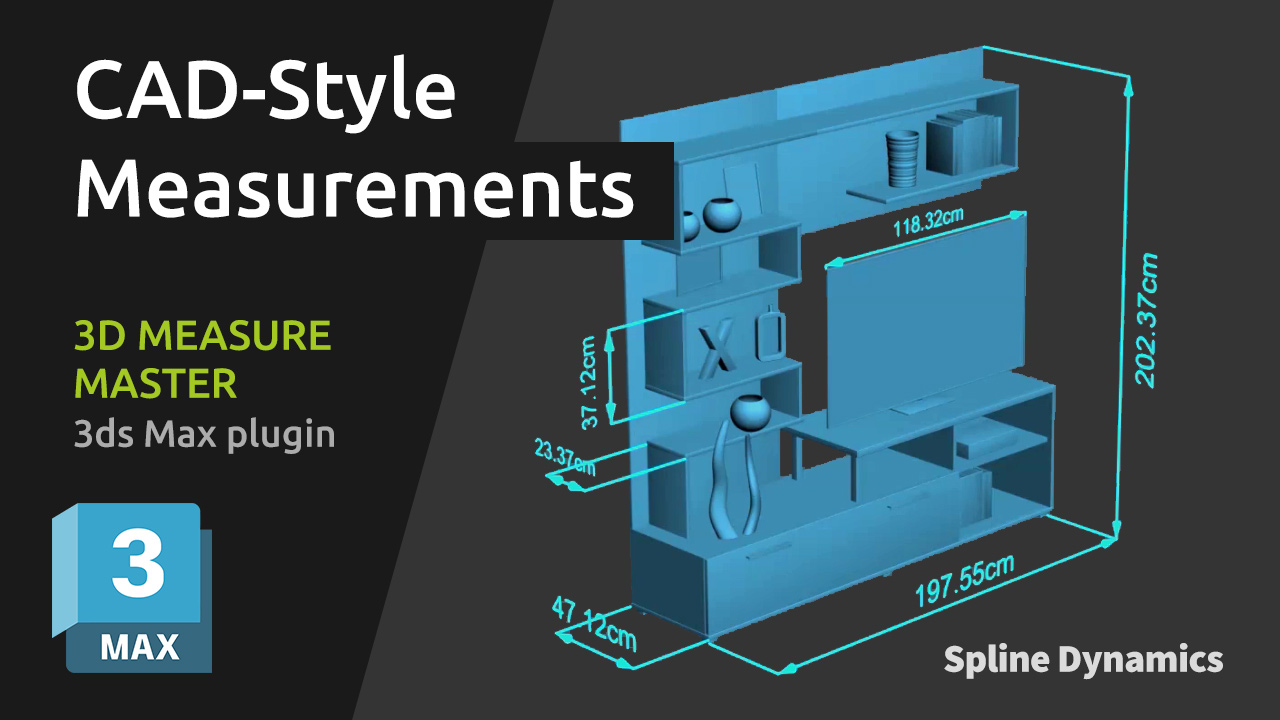
Star Event, a multi-award-winning event marketing agency, needed a way to take accurate measurements inside complex 3ds Max scenes. They were looking for something intuitive and reliable—similar to SketchUp’s measurement workflow and the clarity of CAD annotations—but fully integrated into their 3ds Max environment.

They also needed to export all measurements to a spreadsheet (Excel or CSV) and include the dimensions directly in the final 3D renders for documentation and client presentations.

I developed a custom tool that allows users to take precise point-to-point measurements with snapping support, automatically generate readable TextPlus-based distance labels in the viewport, and manage everything from a dedicated interface. Measurements could be renamed, organized, exported and rendered directly within the scene.

This project eventually evolved into 3D Measure Master, a commercial plugin now used by hundreds of 3ds Max professionals worldwide—a great example of how a custom script can grow into a full-featured production tool.

Beiga (Poland): Automating RenderStacks Workflows

Beiga, a studio specializing in photorealistic furniture visualization, often works with multiple furniture groups, material variations and both regular and transparent-background render versions. Setting up all these combinations manually inside RenderStacks(*) made their workflow slow and difficult to maintain across projects.

To streamline this, I developed a custom tool that automatically builds the entire RenderStacks structure needed for the project—creating and organizing layers, preparing cameras, setting up visibility rules and generating all required passes. Instead of manually configuring dozens of options, the user simply selects the furniture groups and cameras, chooses the material variations, and the entire render setup is generated in seconds.

RenderStacks provides deep automation capabilities through its Maxscript API, but making full use of it required studying and testing its functions thoroughly. I also consulted with RenderStacks support, who helped me work with a few advanced, undocumented functions. This made it possible to deliver a tailored and efficient solution that the studio could reuse across multiple projects.

(*) RenderStacks is a 3ds Max plugin used to manage complex multi-pass render setups. It allows artists and TDs to build structured, modular render trees, and provides a Maxscript API for workflow automation.

What All These Projects Have in Common

Although each case was unique, all of them demonstrate how custom scripting can reshape a studio’s workflow. Every tool significantly reduced manual labor, minimized the risk of human error and adapted 3ds Max to the exact needs of the production pipeline instead of forcing artists to work around limitations. Most importantly, these solutions allowed teams to shift their time from repetitive tasks to creative work—where it truly makes a difference.

Want to Improve Your 3ds Max Workflow?

If your studio could benefit from workflow automation, custom tools or pipeline optimization in 3ds Max, you can learn more about our Custom 3ds Max Script Development Services.

Share
Posted on Leave a comment

3D Measure Master – Complete Tutorial

This comprehensive tutorial will guide you through every feature of 3D Measure Master, the professional 3ds Max plugin for CAD-style 3D measurements.

You’ll learn how to use the 5 main measurement tools — Tape, Angle, Radius, Diameter, and Bounding Box — to measure objects directly in your scene with real 3D precision.
The tutorial also explains how to adjust global settings (colors, units, spline thickness, text size, text offset and end markers), how to customize per-measure parameters, and how to export all your measurements to a CSV file for documentation or review.

Whether you’re an architectural visualizer, technical modeler, or product designer, this video will help you integrate accurate, clean, and renderable measurements into your 3ds Max workflow.

For a detailed explanation of every tool and parameter, please read the plugin documentation.

Share
Posted on Leave a comment

From Developing 3ds Max scripts to Blender addons

My First Steps into Blender: Why I Decided to Start Developing Addons

For more than a decade I’ve been fully immersed in the 3ds Max world—using it every single day for production, and building plugins and scripts under the Spline Dynamics brand to make workflows faster, smarter, and a lot less painful. 3ds Max has been my home, and honestly, I still love it. But over the past few years, it’s been frustrating to see Autodesk holding back on 3ds Max development, while Blender keeps expanding impressively across every corner of 3D production.

Like many of you, I was skeptical at first. Blender looked interesting, sure—but could it really compete with 3ds Max in professional pipelines? I’ve always believed that software is just a tool, and what really matters is what you create with it. Still, Blender kept popping up everywhere: in ArchViz, motion graphics, VFX, game development, even among freelancers and small studios that traditionally relied on Max. Why? It’s free, open source, growing super fast, and the community is insanely active.

So at some point, curiosity won. I started learning Blender on the side, playing with Geometry Nodes, digging into the Python API, and comparing it to my experience developing for Max. And here’s my honest take so far:

What I really like about Blender:

  • It’s free and open source, which lowers the entry barrier for tons of artists, and allows for continuous updates and revisions.
  • The software is really lightweight and opens in a few seconds.
  • Geometry Nodes are just brilliant. They open up procedural workflows that in Max would require either plugins or a lot of custom scripting.
  • The community is massive, helpful, and super engaged. There’s a constant flow of tutorials, addons, and experiments.
  • Development is active and transparent—you can see the roadmap, the commits, and even influence the direction.

What I still miss from 3ds Max:

  • Some workflows still feel more polished and robust in Max (especially when it comes to precision modeling and certain CAD-related tasks).
  • The modifier stack in Max is simple but extremely powerful—sometimes Blender’s approach feels a bit messy.
  • As a developer, the MaxScript environment (combined with the SDK) is very mature, while Blender’s Python API is powerful but still has quirks you need to work around.
  • Let’s be honest: switching after years in Max is not painless. Muscle memory is a thing!

After a while, I realized something important: I don’t need to choose. I can keep developing and supporting plugins for 3ds Max while also exploring Blender. Both have strengths, and many professionals (maybe you too) actually use them side by side depending on the project.

Which brings me to some exciting news: I’ve just released my very first Blender addon!

ECM, a simple and powerful Blender modifier

ECM – Extrude Curve Modifier is a non-destructive modifier built with Geometry Nodes that lets you extrude curves quickly and parametrically. If you’ve ever tried to create 3D geometry from curves in Blender, you know it’s possible but not always straightforward. ECM makes it simple, intuitive, and flexible—something I always aim for in my tools.

This is just the beginning. My plan is to keep developing addons for Blender while continuing my work in 3ds Max. I see this not as “switching sides” but as expanding the toolkit—for myself and for you, the artists who follow Spline Dynamics.

So if you’re a Blender user (or curious about becoming one), feel free to check out ECM, it’s already available on Blender Extensions and on Gumroad. I’d love to hear your feedback, suggestions, or ideas for future tools.

This is a new adventure for me, and I’m honestly excited to see where it leads.

Share
Posted on Leave a comment

Maxscript Bits & Tricks – Randomize Objects, Colors & Materials in 3ds Max

Bring more life and variation into your 3ds Max scenes with just a few lines of Maxscript!

In this edition of Maxscript Bits & Tricks, you’ll learn how to quickly randomize the position, rotation, wirecolor, and materials of selected objects.
Perfect for creating more natural, less mechanical arrangements in ArchViz, motion graphics, and product visualization projects.

Code snippets

1. Randomize position and rotation of selected objects

Move and rotate selected objects randomly to create more natural distributions.
This script supports 3ds max groups.

for obj in selection where obj.parent==undefined do (
rPos = random -3.0 3.0
rRot = random -20.0 20.0
move obj [rPos, rPos, 0]
rotate obj (eulerangles 0 0 rRot)
)

2. Randomize wirecolor of selected objects

Assign random wireframe colors to each selected object, making it easier to distinguish them in the viewport.

for obj in selection do obj.wirecolor = color (random 0 255) (random 0 255) (random 0 255)

3. Swap materials among selected objects

Mix up the materials of the selected objects randomly without repeating.

selArr = selection as array
matArr = for obj in selArr collect obj.material
for obj in selArr do (
idx = random 1 matArr.count
obj.material = matArr[idx]
deleteItem matArr idx
)

Why use randomization scripts?

  • Add natural randomness to scenes quickly
  • Create more believable and organic object arrangements
  • Speed up look development for ArchViz, design layouts, or product setups
  • Simplify creative variations without manual tweaking

Taking this further

These scripts are great for adding quick variations and experimenting with randomness in your scenes.
But when you need to distribute objects across surfaces, control density, and manage variation in a more visual and predictable way, doing it manually can quickly become limiting.

Scatter Tools is a 3ds Max script that can help you:

  • scatter objects across any surface in seconds
  • control distribution, spacing, and density visually
  • apply random variation to position, rotation, and scale
  • iterate quickly without rewriting or running multiple scripts

Watch Scatter Tools in Action

More productivity tools and scripting for 3ds Max

If you found these tips helpful, be sure to check out our professional plugins and tools for 3ds Max.

We also offer custom scripting services to automate repetitive tasks and boost your workflow!

Share
Posted on Leave a comment

Maxscript Bits & Tricks – Smart Layer Hacks in 3ds Max

In this episode of Maxscript Bits & Tricks, we’ll take a look at some handy Maxscript snippets to help you organize your 3ds Max scenes more efficiently using layers.

Layers are a great way to group, control, and clean up complex scenes — but often, things end up scattered across random layers or grouped in ways that make no sense. These small but powerful scripts will help you fix that in seconds.

Let’s get started!

Code snippets

1. Move all lights and cameras to the Default layer

Sometimes cameras and lights are scattered across various layers, especially when importing scenes from external sources or merging multiple files. Use this simple line of code to send them all back to the “Default” layer:

for o in objects where (superClassOf o)==light or (superClassOf o)==camera do (LayerManager.getLayer 0).addnode o

2. Move all VRay proxies to a new layer

Keeping your heavy VRayProxy assets organized in a dedicated layer is a great way to manage scene complexity. This snippet finds all VRay proxies in the scene and places them in a newly created layer called “VRay_Proxies”:

lay = LayerManager.newLayerFromName "VRay_Proxies"
for o in objects where classof o == VRayProxy do lay.addNode o

3. Hide all layers except the ones of selected objects

Need to focus only on what you’re working on? This script hides every layer in the scene except the ones where your currently selected objects are. Ideal for isolating working sets without changing visibility layer by layer.

arr = for o in selection collect o.layer.name
LM = LayerManager
for i = 0 to LM.count - 1 do (
lay = LM.getLayer i
lay.isHidden = (findItem arr lay.name == 0)
)

Why use these layer scripts?

  • Quickly organize imported or messy scenes
  • Simplify your Layer Manager
  • Focus only on what matters in complex projects
  • Save time in lighting and layout workflows

More productivity tools and scripting for 3ds Max

If you found these tips helpful, be sure to check out our professional plugins and tools for 3ds Max.

We also offer custom scripting services to automate repetitive tasks and boost your workflow!

Share