Posted on 1 Comment

Streamline Your ArchViz Workflow with These Essential 3ds Max Scripts

Imagine transforming a blank 3D canvas into a breathtaking architectural masterpiece in record time — this is the promise of modern tools in 3D visualization. In such a dynamic field, efficiency and creativity go hand in hand. ArchViz Tools provides a suite of innovative scripts for 3ds Max users, designed to simplify the creation of architectural elements and enhance visual storytelling. Whether you’re generating detailed 3D models or adding immersive effects to your scenes, these tools empower you to achieve professional results with minimal effort. We’ve divided the products into two main categories to better showcase their functionalities. Let’s explore these powerful products.

Kitchen Cabinet Generator 3ds Max Script - ArchViz Tools

Generating 3D Models of Doors, Windows, and Furniture

Aluminum Window Generator

Create detailed aluminum windows effortlessly with this generator. Customize frame styles, glass types, and dimensions to suit any architectural design. For instance, it’s an excellent choice for creating modern office buildings or residential projects requiring sleek, functional window designs that blend seamlessly with various architectural styles. Perfect for adding realistic windows to your scenes in minutes.
Get Aluminum Window Generator

Louvre Windows Generator

This script allows you to generate functional and aesthetic louvre windows, complete with adjustable angles and materials, adding a modern touch to any scene.
Get Louvre Windows Generator

Sliding & Stacking Door Generator

Create sliding and stacking doors with ease. This generator lets you design doors with precise dimensions, materials, and movement settings for seamless integration into your projects.
Get Sliding & Stacking Door Generator

Bi-Fold Door Generator

Easily generate bi-fold doors with adjustable panels, materials, and sizes. This script saves time while ensuring precision and flexibility in your 3D models.
Get Bi-Fold Door Generator

Glass Door Generator

Design glass doors with customizable handles, hinges, and materials. Whether for residential or commercial projects, this tool simplifies the process of creating elegant glass door models.
Get Glass Door Generator

Blinds & Curtains Generator

Enhance interiors with realistic blinds and curtains. The generator offers a range of styles and fabric options, allowing you to add detailed window treatments to any space.
Get Blinds & Curtains Generator

Kitchen Cabinet Generator

Streamline kitchen designs with this versatile cabinet generator. Choose from various cabinet styles, finishes, and hardware to create a fully customized kitchen setup.
Get Kitchen Cabinet Generator

Picture Frame Generator

Add the finishing touch to your interiors with custom picture frames. Choose from a variety of frame styles and sizes to showcase artwork or photographs realistically.
Get Picture Frame Generator

Ocean Waves Generator 3ds Max Script - ArchViz Tools

Adding Visual Depth and Lighting Effects Using 2D Masks

Backdrop Generator

Set the stage for your scenes with this backdrop generator. Create customizable backgrounds that add depth and context, whether for architectural visualizations or product renderings.
Get Backdrop Generator

Ocean Waves Generator

Simulate realistic ocean waves with this powerful tool. Using detailed 2D masks, it creates the illusion of a dynamic water surface, making it perfect for coastal scenes, pool areas, or even abstract designs that need a touch of fluidity.
Get Ocean Waves Generator

Road Markings Generator

Easily add precise road markings to your urban or highway scenes. This generator uses 2D masks to create sharp, customizable designs, saving you hours of manual work while maintaining accuracy and realism.
Get Road Markings Generator

Dappled Light Generator

Bring your scenes to life with intricate dappled light effects. Ideal for simulating sunlight filtered through trees or patterned shadows from decorative elements, this script enhances mood and depth using efficient 2D masking techniques.
Get Dappled Light Generator

Dappled Light Generator 3ds Max Script - ArchViz Tools

Redefine Productivity and Visual Impact with the Power of ArchViz Tools

ArchViz Tools scripts are indispensable for 3ds Max users aiming to enhance their productivity and creativity. Whether you’re crafting intricate 3D models of architectural elements or enriching your scenes with compelling visual effects, these tools offer unparalleled flexibility and efficiency. By integrating them into your workflow, you’ll not only save time but also achieve professional-grade results that captivate your audience.

Ready to revolutionize your 3D projects? Explore the full range of ArchViz Tools today and take your designs to the next level!

This post is part of a strategic partnership with the brand mentioned. We believe these scripts are valuable resources that can significantly enhance your experience in 3ds Max.

Share
Posted on Leave a comment

SuperHelix: Quick Video Tutorial Series

SuperHelix is one of the most versatile plugins for 3ds Max, designed to simplify the creation of complex helix-based shapes and procedural structures. To help you maximize its potential, we’ve compiled a series of five video tutorials that cover everything from quick-start basics to advanced practical examples.

Mastering the Gizmo to Shape Custom Helical Splines

Discover how to manipulate the SuperHelix gizmo in 3ds Max to craft various helical shapes and volumes. The gizmo in SuperHelix is an essential tool that offers a live preview of complex helix splines, letting you control everything from the overall flow to individual sections’ size and torsion. Learn to use the Root Helper, Main Path, and Section Controls to create custom helix designs perfect for Motion Graphics, 3D modeling, and animation paths.

Understanding the UI and Key Parameters for Helix Creation

Get a complete overview of the SuperHelix plugin UI in 3ds Max, exploring each parameter to create complex, custom helical splines. Learn how to use presets, manage gizmos, control helix turns and resolution, and apply custom paths. This detailed guide shows how each UI feature works, from setting the curve type to adjusting rotation, adding noise, and even cloning helixes around your chosen path.

Exploring Presets to Create Helical Objects

Explore the presets included in the SuperHelix plugin for 3ds Max to create unique helical spline objects. From springs and cartoon tornadoes to intricate shapes like a ball of wool and a Chinese pagoda, these presets offer an excellent starting point to master SuperHelix. Learn how each preset utilizes different parameters and gizmo structures to achieve specific effects, and see how easy it is to create complex, organic, or geometric shapes with just a few adjustments.

Create a Woven Wicker Basket using Presets

Learn how to create a realistic woven wicker basket using spline curves. Use SuperHelix presets to set up the basis of a basket model entirely made of spline curves. Adjuste the general shapes and gizmos to form the different parts of the basket. Learn tips for creating multiple helical splines aligned radially.

Create Helical Spline Animations Easily

Learn how to create stunning helical spline animations in seconds with SuperHelix. Set the time range and the animation easing and voilá!

Note: If you are interested in making complex spline animations while having detailed control over every aspect and parameter from a user-friendly, centralized interface, see TurboSplines plugin.

You can also find more video tutorials on our Youtube channel.

Share
Posted on Leave a comment

SubSpline – Quick Start Tutorial

SubSpline is an Advanced Subobject Selector & Material IDs Editor for spline shapes in Autodesk 3dsMax.

With this plugin, you can edit your shapes way faster, using its smart and efficient tools for selecting vertices, segments and spline subobjects.

SubSpline is also the perfect tool for managing the material IDs in your splines, due to its extensive set of functions ment for this porpose.

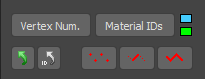
Some tools in this plugin work only in subobject level (like the ones in Select Subobjects section), while others can work both at base or subobject level. See the image above.

SubSpline was ment to work in parallel with 3dsMax Editable Spline tools. You can switch between the different subobject levels directly from the script’s UI, with the vertex/segment/spline buttons, at the Main Panel.

Vertex/Segment/Spline (icon buttons):
These 3 check buttons are clones of the ones in Editable Spline parameters and have the same function: enable or disable the corresponding subobject level edition.
When active, all the controls in Select Subobjects section become enable and ready to operate.
You can hold CTRL+button to convert the current subobject selection to a different type (like you do in 3dsMax Editable Poly).

Select an editable spline shape and start playing with SubSpline tools. The pugin is very intuitive and easy to learn.
You will really speed up your workflow and reduce your spline editing times by half.

If you are a user of iToo Software RailClone plugin, SubSpline will open a world of exciting new possibilities for you. It’s a great tool to manage spline material IDs, fast and efficiently.
Here’s a great RailClone & SubSpline Tutorial.

For further information and detailed description of every tool in this plugin, please check the SubSpline Manual.

Cheers!

Share
Posted on Leave a comment

SuperHelix Quick Start tutorial

Welcome to SuperHelix, an Autodesk 3ds Max plugin for creating impressive custom helical splines for 3D modeling and animation!


INSTALLATION

  • 1. Drag the “.mzp” file onto one of your viewports in 3ds Max . The plugin automatically installs itself.
  • 2. To add the plugin to a toolbar, go to the Menu > Customize > Customize user interface…
  • 3. Go to the “Toolbars” tab and pick the category “Spline Dynamics”.
  • 4. The plugin’s name “SuperHelix” must be listed there. Just drag it onto a toolbar and you’re done!


START: PRESETS & THE GIZMO

Fortunately, Superhelix comes with a set of various presets wich make your life easier. They will help you understand how the tool works and to experiment its power in a matter of minutes.

For starting, there are 3 main controls you need to know. They are shown in the image on the left:

1. Presets list (at the top)
2. “Create Gizmo” (big button below presets)
3. “Make Helix” (big button at the bottom)

The plugin comes with 7 default presets. They show you a panorama of different things you can achieve with this plugin. Every preset defines specific values for each of the plugin parameters.

-> Try selecting different presets and look how parameters change interactively.

-> Now set back the first preset “Basic Spring” and press “CREATE GIZMO”.

A pop-up dialog appears, asking you to type a name for the Gizmo.

-> For now, just leave the default “NewGizmo” and click OK.

Instantly, a new Gizmo is created at the origin. But what’s a gizmo for SuperHelix plugin?
As you see, a gizmo consists of some helping objects: a root helper, a central spline and some circles (in this case, two). These objects are connected in a specific way so you can manipulate them and have a preview of the volume and shape of the final helix before making it.

-> Just press “MAKE HELIX” and see what happens.

A helix spline is created, according to volume of the gizmo. By default, the splines are created as renderable objects, but you can change that at the “Display / Options” rollout, at the bottom of the interface.

-> Delete the spline. Now, with the standard scale tool, scale down the top circle and then press “MAKE HELIX” again.

The spline now should look like a cone.

-> Delete the spline and try rotating the top circle about 45 degrees in x or y axis.

At this point i think you get the point, right?

You can move, rotate or scale the circles (wich are called sections), edit the central spline (called main path) or manipulate the root helper to move, rotate or scale the whole gizmo.

-> Play around with the gizmo and try different setups.

-> When you have played enough, delete the gizmo. (You will get a warning message. Just confirm the deletion)

-> Then, move on to the other presets and try one by one, modifiying the gizmos. You will discover many interesting things SuperHelix can do.


FINAL WORDS

Just one important note to finish:

Each of the default presets comes with a singular predefined gizmo, but that’s just a shortcut. You can start with the Basic Spring preset and achieve any shape you want for the gizmo to create unique and amazing super-helices. As they say, the limit is your imagination! 🙂

Enjoy the tool, practice and come back for more! We have other tutorials and an image gallery waiting for you!

Cheers!

Share