Posted on Leave a comment

How 3ds Max Automation Can Save You Time and Money

In today’s competitive industries, efficiency is key. Professionals and studios utilizing 3ds Max often encounter tight deadlines and repetitive tasks, making workflow optimization essential.

In a fast-paced industry, every minute counts. Time-consuming manual work drains resources, but automation provides a smarter approach. By streamlining repetitive tasks, studios can enhance productivity, meet deadlines faster, and maximize their profits—all without increasing operational costs.

The Benefits of Automating Your 3ds Max Workflow

1. Save Time on Repetitive Tasks

Repetitive operations consume valuable time and limit efficiency. Automating these tasks with custom Maxscript tools significantly speeds up the process, allowing artists to focus on creativity rather than manual labor.

2. Reduce Human Error

When handling complex scenes with hundreds of objects, manual adjustments can lead to mistakes. Automated processes ensure consistency and accuracy, reducing the risk of errors in modeling, texturing, and rendering.

3. Improve Workflow Consistency

Every artist works differently, but in a studio environment, consistency is crucial. Custom scripts standardize processes across multiple users, ensuring that scenes, assets, and render settings follow a unified structure.

4. Enhance Scene Optimization

Large-scale architectural scenes often become heavy and slow to work with. Automated optimization scripts can clean unnecessary data, reduce poly counts, convert materials efficiently, and optimize lighting setups for better performance without sacrificing quality.

5. Increase Profitability

Whether you run a large studio or work as a freelancer, automation helps increase revenue by optimizing production times without additional overhead. By cutting down on redundant manual work, studios can complete more projects within the same timeframe, increasing revenue without expanding their workforce.

Real-World Applications of 3ds Max Automation

Procedural Modeling

Custom scripts can generate complex geometries based on predefined parameters, allowing for rapid creation of intricate models. This procedural approach is invaluable in projects requiring numerous variations of architectural elements or environmental assets.

Data-Driven Animation

Automating animations based on external data sources, such as spreadsheets or databases, enables the efficient creation of complex animations that would be time-consuming to keyframe manually. This technique is particularly useful in scenarios like architectural walkthroughs where camera paths can be generated from layout data.

Batch Processing

Custom scripts can automate batch processing tasks, such as rendering multiple scenes, converting numerous files, or exporting multiple assets at once. For example, studios can streamline the conversion of entire libraries of materials from one rendering engine to another, generate preview renders for large sets of assets, or automate the baking of lighting and textures across multiple scenes.

Exporting Data from 3ds Max

Automation can facilitate the export of 3D data for various external uses. Scripts can extract object properties, scene hierarchies, and metadata into structured files, such as Excel spreadsheets or JSON/XML formats. This is particularly useful for:

  • Inventory management: Automating reports of 3D asset libraries.
  • Real-world fabrication: Extracting precise measurements for construction, CNC machining, or 3D printing.
  • Interoperability: Exporting structured data for use in external applications like game engines, engineering software, or virtual production pipelines.

Integration with Other Software

Scripting allows 3ds Max to communicate with other software, facilitating a seamless workflow across different platforms. For instance, integrating 3ds Max with project management tools can automate the updating of asset statuses, enhancing team collaboration.

Custom User Interfaces

Developing tailored interfaces within 3ds Max streamlines specific workflows, making complex tasks more accessible. For example, a custom UI can simplify the process of setting up render passes, ensuring that all team members follow the same procedures.

Why Choose Spline Dynamics for Custom 3ds Max Scripting?

At Spline Dynamics, we provide customized 3D scripting solutions for studios looking to enhance their rendering pipeline and optimize 3D workflows efficiently. With years of experience in automation and workflow optimization, we have assisted numerous artists and studios in eliminating bottlenecks and enhancing efficiency.

We offer:

  • Custom Script Development: We craft personalized solutions that fit your specific needs perfectly.
  • Scene Optimization Services: Our expertise ensures that your 3ds Max scenes are optimized for performance without compromising quality.
  • Expert Consultation: We provide insights and strategies to streamline your workflow, allowing you to maximize productivity.

We’re excited to discuss how we can support your projects and help you achieve your goals. Feel free to reach out!

Spline Dynamics 3ds Max Scripting Services | Contact us!

Share
Posted on Leave a comment

SuperHelix: Quick Video Tutorial Series

SuperHelix is one of the most versatile plugins for 3ds Max, designed to simplify the creation of complex helix-based shapes and procedural structures. To help you maximize its potential, we’ve compiled a series of five video tutorials that cover everything from quick-start basics to advanced practical examples.

Mastering the Gizmo to Shape Custom Helical Splines

Discover how to manipulate the SuperHelix gizmo in 3ds Max to craft various helical shapes and volumes. The gizmo in SuperHelix is an essential tool that offers a live preview of complex helix splines, letting you control everything from the overall flow to individual sections’ size and torsion. Learn to use the Root Helper, Main Path, and Section Controls to create custom helix designs perfect for Motion Graphics, 3D modeling, and animation paths.

Understanding the UI and Key Parameters for Helix Creation

Get a complete overview of the SuperHelix plugin UI in 3ds Max, exploring each parameter to create complex, custom helical splines. Learn how to use presets, manage gizmos, control helix turns and resolution, and apply custom paths. This detailed guide shows how each UI feature works, from setting the curve type to adjusting rotation, adding noise, and even cloning helixes around your chosen path.

Exploring Presets to Create Helical Objects

Explore the presets included in the SuperHelix plugin for 3ds Max to create unique helical spline objects. From springs and cartoon tornadoes to intricate shapes like a ball of wool and a Chinese pagoda, these presets offer an excellent starting point to master SuperHelix. Learn how each preset utilizes different parameters and gizmo structures to achieve specific effects, and see how easy it is to create complex, organic, or geometric shapes with just a few adjustments.

Create a Woven Wicker Basket using Presets

Learn how to create a realistic woven wicker basket using spline curves. Use SuperHelix presets to set up the basis of a basket model entirely made of spline curves. Adjuste the general shapes and gizmos to form the different parts of the basket. Learn tips for creating multiple helical splines aligned radially.

Create Helical Spline Animations Easily

Learn how to create stunning helical spline animations in seconds with SuperHelix. Set the time range and the animation easing and voilá!

Note: If you are interested in making complex spline animations while having detailed control over every aspect and parameter from a user-friendly, centralized interface, see TurboSplines plugin.

You can also find more video tutorials on our Youtube channel.

Share
Posted on Leave a comment

Spline Refiner Tutorial: Subdivide Curves Uniformly

Learn how to achieve perfectly even subdivision on spline curves in 3ds Max with the Spline Refiner plugin!
This quick tutorial shows you how to apply uniform segmentation to curved parts of your spline, ideal for preparing precise meshes for extrusion without losing any detail from your original shape.

Share
Posted on Leave a comment

SubSpline – Quick Start Tutorial

SubSpline is an Advanced Subobject Selector & Material IDs Editor for spline shapes in Autodesk 3dsMax.

With this plugin, you can edit your shapes way faster, using its smart and efficient tools for selecting vertices, segments and spline subobjects.

SubSpline is also the perfect tool for managing the material IDs in your splines, due to its extensive set of functions ment for this porpose.

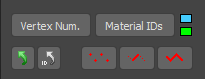
Some tools in this plugin work only in subobject level (like the ones in Select Subobjects section), while others can work both at base or subobject level. See the image above.

SubSpline was ment to work in parallel with 3dsMax Editable Spline tools. You can switch between the different subobject levels directly from the script’s UI, with the vertex/segment/spline buttons, at the Main Panel.

Vertex/Segment/Spline (icon buttons):
These 3 check buttons are clones of the ones in Editable Spline parameters and have the same function: enable or disable the corresponding subobject level edition.
When active, all the controls in Select Subobjects section become enable and ready to operate.
You can hold CTRL+button to convert the current subobject selection to a different type (like you do in 3dsMax Editable Poly).

Select an editable spline shape and start playing with SubSpline tools. The pugin is very intuitive and easy to learn.
You will really speed up your workflow and reduce your spline editing times by half.

If you are a user of iToo Software RailClone plugin, SubSpline will open a world of exciting new possibilities for you. It’s a great tool to manage spline material IDs, fast and efficiently.
Here’s a great RailClone & SubSpline Tutorial.

For further information and detailed description of every tool in this plugin, please check the SubSpline Manual.

Cheers!

Share
Posted on Leave a comment

SubSpline Tutorial: Working with RailClone

This video shows the great advantage of using SubSpline 3dsMax plugin to complement and maximize iToo Software RailClone‘s capabilities by managing spline material IDs fast and efficiently.

Note: If you are not familiarized with the use of spline material IDs in RailClone, we recommend you to first see this tutorial.

For further and detailed information about SubSpline tools, please refer to the SubSpline Manual.

 
Share