Posted on Leave a comment

Spline Refiner Tutorial: The Basics

Spline Refiner 3ds Max plugin. Always uniform segmentation without losing any detail. Preserves the exact orignal shape and vetices. Spline Refiner is a 3ds Max productivity tool that features a Smart Spline Subdivision solution to get evenly distributed vertices on curves.

General Considerations

Spline Refiner is a 3dsMax productivity tool thought to automate and speed-up the tedious task of subdividing all the segments of a shape manually, trying to achieve a general uniform vertex distribution along the splines.

This is not a normalization tool, like 3dsMax’s Normalize Spline modifier. It’s a Smart Subdividing tool.
The goal of this plugin is to get an even segmentation of the splines while preserving all the original vertices and shape intact.

Since this tool was ment to use at a final stage of the curves edition, it works better when provided with clean shapes, without overlapping vertices or other problematic issues, that may cause undesired results.

Spline Refiner works on any type of shape but will convert the base object to Editable Spline (keeping all the modifiers intact). It supports shapes with modifiers assigned (even geometry builders like Extrude modifier), because it works on the base object level.

The plugin can operate on multiple shapes simultaneosly, fast and efficiently. It takes only a few seconds to process hundreds of splines.

To start working with your selected shapes in Spline Refiner, the first thing we suggest is to turn on ‘Show vertex ticks’ (at the bottom of the plugin’s UI). This way you will be able to see all the changes in segmentation in realtime.

Start trying Spline Refiner and play with the parameters of Equalize Subdivision tool. The following is a description of all the tools in the plugin’s UI.

Equalize Subdivision
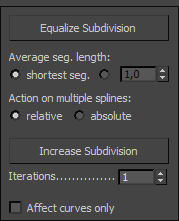
This is the key tool of this plugin. It analyzes every segment of the spline/s and, according to the provided parameters, determines the best way to get the most uniform subdivision possible, without altering the existing shape and vertices.

It doesn’t use a fix segmentation value. Instead, it takes an approximate (average) segment length, wich you can choose to be calculated automatically (using the length of the shortest segment in spline) or set a custom value.

If you are working with multiple splines and you want to have a uniform subdivision across all splines, then choose the options shortest seg. and absolute.
If you want the plugin to calculate a specific subdivision for each spline, then choose the options shortest seg. and relative.


The image above clearly shows how the parameters of Equalize Subdivision work. (‘Automatic’ refers to choosing the option ‘shortest seg.‘ as the average segment length.)

Increase Subdivision

This tool divides every segment of the splines in 2 halves, doubling the general segmentation.
The Iterations parameter sets how many times the function will be recursively applied.

The ‘Affect curves only’ checkbox it’s an important feature that affects both Equalize Subdivision and Increase Subdivision functions.
If active, the tools will subdivide only the curved parts and leave straight lines intact. Very powerful feature!

Additional Tools
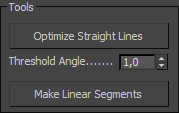
Optimize Straight Lines (button)
Removes all unnecessary vertices from straight lines. It’s a cleaning tool.
Threshold Angle (spinner): establish the maximum angle allowed between segments for removing vertices.

Make Linear Segments (button)
Convert all segments in selected shapes to linear and vertices to corner type.

Basic Shape Parameters: Spline Interpolation
In this section you can control the basic shape interpolation for all the selected shapes. They are the same parameters you can find in any shape, but here you change them for all the selected shapes simultaneously in a single place.

Show vertex ticks (checkbox)
This option expose all the vertices of the selected shapes on screen. Very useful to see the changes in the segmentation while you apply the subdivision functions.

Undo / Revert Actions

These 2 buttons at the bottom of the UI help you revert the changes you recently made with Spline Refiner.
This is a custom undo system, since 3dsMax does not natively support undo for spline operations.

Undo (icon button): undo the very last action.

Revert Actions: reverts all the changes made with Spline Refiner on the selected shapes since you ran the plugin.


This is a simple yet powerful plugin to speed-up your workflow and make your life easier.

For further information please see Spliner Refiner’s Manual.
If you need help or have any consultations or suggestions to make us, please don’t hesitate to write us through this Contact Form.

Enjoy Spline Refiner!

Share
Posted on Leave a comment

Spline Combiner: Shape Cutter tool

Hi guys!

In this tutorial we want to show you how to cut 2D shapes in 3ds Max, in a clean and easy way, using the Shape Cutter tool from Spline Combiner 3dsMax plugin to make the logo in the image above.

In the case of this 3D logo, the three different color regions were required to be separate meshes, to animate them independently.

3ds Max natively comes with a tool for cutting 3D objects called ProCutter (located in Control Panel > GeometryCompound Objects). You could use this tool to cut an already extruded logo, but that way you end up with an Editable Mesh (or Poly) with a collapsed modifiers stack. You loose the advantage of keeping the extrusion parametric as a modifier.
Using this plugin, you work in a non-destructive way, so you can go back and edit the original shapes/splines if you need to.

Let’s start. Make a new scene in 3ds Max and do the following:

1. With the Text shape tool, type “Rainbow” (or whatever you like) in a viewport, give the text a reasonable size and assign a nice font to it.

2. Draw an arc through the whole word. Then make a copy, using SHIFT+move, and place it below it to build a rainbow arc, like in the first step at the image below.


3. Open Spline Combiner.

4. First, you need to attach both arcs together because Spline Combiner requires the cutter object to be a single shape. So, select both arcs. Then go to the Tools rollout (in the plugin’s UI) and press Attach Selected. Now you have a single shape containing both splines.

5. Go to the Shape Cutter rollout. Press the button  Pick Cutter Object and click on the arc shape. Its name appears in the button text.

6. Leave all the checkboxes on. The options Cookie cut for closed shapes and Detach all elements are exactly what we need to get extrusion-friendly shapes.

7. Select both shapes, the rainbow arc and the text. The press APPLY CUTTER.

8. The plugin will take a little time to perform the action. As a result, you will get many single spline shapes (3 or more per each letter). Like in the 2nd step at the above image.

9. Now you need to attach all the shapes by region, considering the 3 regions delimited by the arc shape: top region, middle region and bottom region. So, select all the shapes in the top region, go to the Tools rollout again and press Attach Selected. Repeat the same procedure for the shapes in each region. You will end up with only 3 shapes, like in the 3rd step in the image above.

10. At this point you can delete the cutter object. Delete the arc shape then.

11. Now try to assign an Extrude modifier to the top shape of the logo. If the shape does not extrude well, it means there are some open splines. You need to weld all the vertices properly to get closed splines for the extrusion. So, at the Tools rollout, use the Weld Vertices tool for that. Repeat the process with the other shapes if necessary.

12. To make a 3D logo from a vector shape, you can use either the Extrude or the Bevel modifier. The one in this tutorial was made with Bevel.

13. You should have a now a beautiful 3D logo, composed of 3 meshes. Assign a different colored material to each one and you are ready!

We hope you enjoyed making this practice. If you have any doubts or consultations, you can post a comment down here or write us through the Contact Form.

Cheers!

Share
Posted on Leave a comment

Spline Cleaner: Quick Start Tutorial

Welcome to Spline Cleaner, a set of powerful tools for cleaning, repairing and organizing spline curves in Autodesk 3ds Max!

INSTALLATION

  1. Unzip the content of the .zip file and then drag the “.mzp” file onto one of your viewports in 3ds Max . The plugin automatically installs itself.
  2. A dialog called “Software Activation” pops-up. Enter your license key in the text field. (You received 2 license keys by email when you purchased the product).
  3. If the license key is correct, Spline Cleaner will start.
  4. To add the plugin to a toolbar, go to the Menu > Customize > Customize user interface…
  5. Go to the “Toolbars” tab and pick the category “Spline Dynamics”.
  6. The plugin’s name, “Spline Cleaner”, must be listed there. Just drag it onto a toolbar and you’re done!

SPLINES INFO DIALOG

This plugin comes with an interactive tool called the Splines Info Dialog, wich displays very useful information about the selected shapes/splines.

We strongly recommend you to keep this dialog open everytime you manipulate spline curves to have an instant feedback about their changes.

  1. Draw some splines and shapes  in your 3dsMax scene.
  2. Convert them all to Editable Spline (most of Spline Cleaner operations requiere Editable Splines to work. Otherwise you’ll get a warning message)
  3. Select the splines and open Splines Info Dialog (the topmost button).
  4. You’ll see there all the splines info: no. of shapes selected, no. of splines, segments, vertices, spline length, and more.
  5. Click the button Show/Hide Vertex Ticks to display all the spline vertices/knots.
  6. Make changes to the splines, add, delete and move vertices. Then re-select the splines or change the selection to update the splines info.

This tool can also make a diagnosis of possible errors on your splines, such as overlapping duplicates, double splines, overlapping vertices and empty shapes.

TOOLS, ROLLOUTS & QUICK HELP

If you scroll down the plugin’s interface (UI), you’ll see there are more tools and other rollouts.

The main tools are in the first rollout. In the rollout named More Tools there are some complementary tools, such as Flatten Splines.

In the rollout Basic Parameters, you will be able to change the basic parameters of all the selected splines at once. Try it!

On the right of every tool’s title there’s a question mark icon. When you place the mouse pointer over this icon, a tooltip with help appears. If you click it, in most of the cases, a dialog pops-up showing an extended help.

FIRST STEPS

To start trying the plugin, you can play arming and disarming shapes with many splines. You can do it very fast with Spline Cleaner.

Draw some shapes and splines and create some duplicates to have a bunch of curves. Use the tools Splines Info Dialog, Attach Selected, Explode and Weld Vertices to see how powerful this plugin is.

We hope you enjoyed Spline Cleaner. Check for more tutorials on this site!

Share