Posted on Leave a comment

Q-Proxies Quick Start Tutorial

Introduction

People who usually work with heavy 3dsMax scenes, with a great amount of objects and polygons, often have to struggle against 2 factors:

  1. Low viewport performance, wich makes scene navigation and manipulation a real pain.
  2. Giant file size, wich causes very long loading/saving times.

These problems result in frustration, wasted time and a low productivity.

Q-Proxies helps you quickly downsize your heavy scenes through the automatic creation of proxy meshes, amazingly improving the viewport performance and reducing the loading/saving times. It’s an extraordinary timesaver that will greatly speed up your workflow and make your life much easier.

How it works

Q-Proxies helps you identify meshes in your scene with a high number of faces, through the use of object filters. Then, automatically replaces them with proxy meshes, wich are generally lowpoly versions of those objects, and stores the original ones (called references) in separate 3dsMax files. When you make a render, the high-resolution references are temporarily brought back to scene, aquiring the changes you made to their proxies.
This way you end up with a lightweight scene, with smooth viewport navigation, that loads and saves much faster, so you can work comfortably and efficiently.

The main difference between Q-Proxies and other proxy objects (created with third-party render engines or plugins) is that the proxy creation process here is automatic. You don’t need to manually build your proxies one by one, or plan how to optimize your scene before you actually create it. Q-Proxies can generate multiple different proxies at once, fast and effortlessly. And the best of all, it’s compatible with all render engines and third-party proxy objects, because it works independently from the current renderer and uses 3dsMax standard Editable Meshes, wich you can edit at any time.

The general procedure is:

  1. Set wich objects to convert to proxies / Configure Object Filters.
  2. Select the Preset that best match the type of objects you are targeting.
  3. Optionally, adjust a few proxy creation parameters (like mesh type, polygon reduction, animation baking, etc.)
  4. Press ‘Generate Proxies’.

Interface

The plugin’s UI has 5 different sections. The 3 main sections are the ones initially visible when you run the plugin:

  1. Object Filters
    Include options for filtering your scene meshes by number of faces, size, static/animated, and others.
  2. Create Proxies
    Here you setup the parameters for creating the proxies: type of proxy mesh, amount of polygon reduction, bake animation, etc.
  3. Display/Render Options
    Controls to set how to display proxy meshes in scene and whether to activate or not the replacement of proxies during render.

There are 2 more tabs at the middle, with advanced options and help (Manage/Tools and Help/About), wich are not covered by this introductory tutorial.

Quick Starting Example

Let’s pretend we have an architectural interior scene: an art gallery. For simplicity, this sample scene will contain just 2 elements of the art gallery: columns (cylinders) and sculptures (teapots).

So first, we are going to build this simple scene with high resolution meshes to make it heavy, and then we will use Q-Proxies to reduce it to a very lightweight scene.

  1. In a new 3dsMax scene, create a cylinder to represent a column. Give it 5 height segments, 1 cap segment and 24 sides. The radius and height don’t matter.
  2. Make 6 instances in total and arrange them like the image above, to place our sculptures in the center, surrounded by the columns.
  3. Create a teapot to represent a scuplture, with about 1/3 the height of a column. Give it 64 segments and add a TurboSmooth modifier to it, with 1 iteration. Convert it to Editable Mesh.
    So now it will have more than 1 million faces. This will be our high resolution mesh.
  4. Now make 10 copies in total (not instances). Arrange them the way you like, in the center of the scene. Save your scene.
    You have now a scene with more than 10 million faces (triangles), with a file size of about 452 Mb. Check it out.
    Supposing this is a very complex scene, with lots of objects, polygons, modifiers, textures, etc, you would be probably experiencing a low viewport performance and waiting too long for saving and loading the scene. So we’ll use Q-Proxies plugin to solve this problem.
  5. Open Q-Proxies. (If it was already open, please close it and re-open it, so it resets to default values)
  6. Let’s assume that the objects in our scene are hard to identify and select. So, let’s use Q-Proxies filters to identify the high resolution objects, so we can replace them later with proxies.
  7. Go to Objects Filters section (at the top) and check the radio button called All Geometry, instead of the default Selection. This tells the plugin to operate on all geometry in scene, not only on selected objects.
  8. Leave the other options by default and press the ‘Select‘ button at the bottom right of Object Filters section. This selects filtered objects.
    A message appears: “No objects found after filtering”. That’s because the ‘Max. num. faces’ value is too low. Our teapots have more than 1 million faces each one.
  9. Increase this value to 2,000,000 (2 million). Press ‘Select‘ again.
    The 10 teapots are now selected.
  10. Go down in the UI to the bottom of Create Proxies section and locate Presets. Choose the option ‘Sculptures / Statues’.
    These presets help you quickly setup the main parameters for the proxy creation process.
  11. Press the big button ‘GENERATE PROXIES’.
  12. A message will show up, asking you to confirm the action. Go on.
  13. In this case, another message will show up: “There’s a lot of information to process. […] Continue anyway?”.  (If you process more than 500 objects or 1 million polygons, this additional warning will appear). Confirm again.
  14. Q-Proxies will start processing the objects and generating the proxies.
    It should take no more than 10 to 30 seconds in this simple scene.

When the process ends, please save the scene with a new name to compare it with the previous.

Now you will notice some incredible things in your scene:

  • If you deselect all and see the scene in shaded mode, there’s almost no difference. The general look of the objects was preserved.
  • Every teapot is now a lowpoly mesh, with about only 1,300 faces.
  • All teapots are now instances of each other.
  • Every teapot is an Editable Mesh with a modifier applied, called ‘Proxy Attributes‘. This means that object is now a Q-Proxies proxy mesh.
  • The whole scene has now less than 15,000 total faces!
  • The scene file size was amazingly reduced to just about 650 kb.

This is the magic of Q-Proxies! 😀

Now zoom in to one of the teapots, place a camera and render a very close-up shot. Use any production renderer.

You will see the high resolution mesh at the render!

Now, while you easily manipulate a very light scene, with low resolution proxies, everything looks great and polished in the final render.

I hope you enjoyed this starting tutorial. Just play around with the plugin and its parameters and take a look at the other tutorials and the plugin’s manual for further learning.

Cheers! 🙂

Share
Posted on Leave a comment

SubSpline – Quick Start Tutorial

SubSpline is an Advanced Subobject Selector & Material IDs Editor for spline shapes in Autodesk 3dsMax.

With this plugin, you can edit your shapes way faster, using its smart and efficient tools for selecting vertices, segments and spline subobjects.

SubSpline is also the perfect tool for managing the material IDs in your splines, due to its extensive set of functions ment for this porpose.

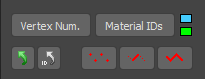
Some tools in this plugin work only in subobject level (like the ones in Select Subobjects section), while others can work both at base or subobject level. See the image above.

SubSpline was ment to work in parallel with 3dsMax Editable Spline tools. You can switch between the different subobject levels directly from the script’s UI, with the vertex/segment/spline buttons, at the Main Panel.

Vertex/Segment/Spline (icon buttons):
These 3 check buttons are clones of the ones in Editable Spline parameters and have the same function: enable or disable the corresponding subobject level edition.
When active, all the controls in Select Subobjects section become enable and ready to operate.
You can hold CTRL+button to convert the current subobject selection to a different type (like you do in 3dsMax Editable Poly).

Select an editable spline shape and start playing with SubSpline tools. The pugin is very intuitive and easy to learn.
You will really speed up your workflow and reduce your spline editing times by half.

If you are a user of iToo Software RailClone plugin, SubSpline will open a world of exciting new possibilities for you. It’s a great tool to manage spline material IDs, fast and efficiently.
Here’s a great RailClone & SubSpline Tutorial.

For further information and detailed description of every tool in this plugin, please check the SubSpline Manual.

Cheers!

Share
Posted on Leave a comment

SubSpline Tutorial: Working with RailClone

This video shows the great advantage of using SubSpline 3dsMax plugin to complement and maximize iToo Software RailClone‘s capabilities by managing spline material IDs fast and efficiently.

Note: If you are not familiarized with the use of spline material IDs in RailClone, we recommend you to first see this tutorial.

For further and detailed information about SubSpline tools, please refer to the SubSpline Manual.

 
Share
Posted on Leave a comment

Spline Refiner Tutorial: The Basics

Spline Refiner 3ds Max plugin. Always uniform segmentation without losing any detail. Preserves the exact orignal shape and vetices. Spline Refiner is a 3ds Max productivity tool that features a Smart Spline Subdivision solution to get evenly distributed vertices on curves.

General Considerations

Spline Refiner is a 3dsMax productivity tool thought to automate and speed-up the tedious task of subdividing all the segments of a shape manually, trying to achieve a general uniform vertex distribution along the splines.

This is not a normalization tool, like 3dsMax’s Normalize Spline modifier. It’s a Smart Subdividing tool.
The goal of this plugin is to get an even segmentation of the splines while preserving all the original vertices and shape intact.

Since this tool was ment to use at a final stage of the curves edition, it works better when provided with clean shapes, without overlapping vertices or other problematic issues, that may cause undesired results.

Spline Refiner works on any type of shape but will convert the base object to Editable Spline (keeping all the modifiers intact). It supports shapes with modifiers assigned (even geometry builders like Extrude modifier), because it works on the base object level.

The plugin can operate on multiple shapes simultaneosly, fast and efficiently. It takes only a few seconds to process hundreds of splines.

To start working with your selected shapes in Spline Refiner, the first thing we suggest is to turn on ‘Show vertex ticks’ (at the bottom of the plugin’s UI). This way you will be able to see all the changes in segmentation in realtime.

Start trying Spline Refiner and play with the parameters of Equalize Subdivision tool. The following is a description of all the tools in the plugin’s UI.

Equalize Subdivision

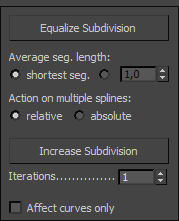
This is the key tool of this plugin. It analyzes every segment of the spline/s and, according to the provided parameters, determines the best way to get the most uniform subdivision possible, without altering the existing shape and vertices.

It doesn’t use a fix segmentation value. Instead, it takes an approximate (average) segment length, wich you can choose to be calculated automatically (using the length of the shortest segment in spline) or set a custom value.

If you are working with multiple splines and you want to have a uniform subdivision across all splines, then choose the options shortest seg. and absolute.
If you want the plugin to calculate a specific subdivision for each spline, then choose the options shortest seg. and relative.


The image above clearly shows how the parameters of Equalize Subdivision work. (‘Automatic’ refers to choosing the option ‘shortest seg.‘ as the average segment length.)

Increase Subdivision

This tool divides every segment of the splines in 2 halves, doubling the general segmentation.
The Iterations parameter sets how many times the function will be recursively applied.

The ‘Affect curves only’ checkbox it’s an important feature that affects both Equalize Subdivision and Increase Subdivision functions.
If active, the tools will subdivide only the curved parts and leave straight lines intact. Very powerful feature!

Additional Tools

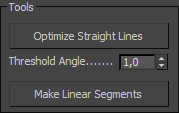
Optimize Straight Lines (button)
Removes all unnecessary vertices from straight lines. It’s a cleaning tool.
Threshold Angle (spinner): establish the maximum angle allowed between segments for removing vertices.

Make Linear Segments (button)
Convert all segments in selected shapes to linear and vertices to corner type.

Basic Shape Parameters: Spline Interpolation
In this section you can control the basic shape interpolation for all the selected shapes. They are the same parameters you can find in any shape, but here you change them for all the selected shapes simultaneously in a single place.

Show vertex ticks (checkbox)
This option expose all the vertices of the selected shapes on screen. Very useful to see the changes in the segmentation while you apply the subdivision functions.

Undo / Revert Actions

These 2 buttons at the bottom of the UI help you revert the changes you recently made with Spline Refiner.
This is a custom undo system, since 3dsMax does not natively support undo for spline operations.

Undo (icon button): undo the very last action.

Revert Actions: reverts all the changes made with Spline Refiner on the selected shapes since you ran the plugin.


This is a simple yet powerful plugin to speed-up your workflow and make your life easier.

For further information please see Spliner Refiner’s Manual.
If you need help or have any consultations or suggestions to make us, please don’t hesitate to write us through this Contact Form.

Enjoy Spline Refiner!

Share
Posted on Leave a comment

Spline Combiner Booleans: Limitations & Workarounds

Boolean operations involve complex math. Boolean engines are very complicate pieces of code and there is no perfect algorithm for this task.

Spline Combiner uses 3dsMax’s ProBoolean engine to perform boolean oprations between splines. This functions work generally very good, but there are some exceptions.

There may be occasions in wich Spline Combiner‘s Boolean Splines tool cannot resolve the boolean operation properly. For example, in some cases after the process, all the shapes disappear or the resulting shape is wrong. Don’t panic! This is not an error. It’s a known limitation and it happens just in particular cases. We will point those cases and show you how to solve them in a few steps.

The image above shows 3 cases in wich the Boolean Union operation fails and how to use Spline Combiner’s Detect Intersections tool to workaround this.

The most problematic situations, as you can see, are those involving overlapping vertices and lines between shapes.

As a general rule, to overcome these cases, you can use the Detect Intersections tool. The steps are the following:

  1. Select the shapes
  2. Open Detect Intersections rollout
  3. Tick ‘Between different shapes’
  4. Choose ‘Split’ option and ‘Detach elements’
  5. Press ‘DETECT INTERSECTIONS’ button. The plugin breaks the splines apart by intersections, detaching all curves.
  6. Delete the unwanted parts manually
  7. At the Tools rollout, press ‘Attach Selected’ and ‘Weld Vertices’

Ready!

This method and works for almost all the cases, since the algorithm Spline Combiner uses for detecting intersections is very accurate and effective.

Try it! If you have any doubts or consultations please leave a comment down here or write us through this Contact Form.

Cheers!


Share