Use Cryptomatte Masks in Any Image Editor — Without Photoshop

Cryptomatte Extractor - Extract EXR masks to work in any image editor.

For years, Photoshop + Exr-IO became the standard workflow for working with Cryptomatte masks in ArchViz and VFX production.

But many artists today use alternative image editors, lightweight workflows, or simply prefer standalone tools over subscription-based ecosystems.

That’s what makes this new utility especially interesting.

What is Cryptomatte Mask Extractor?

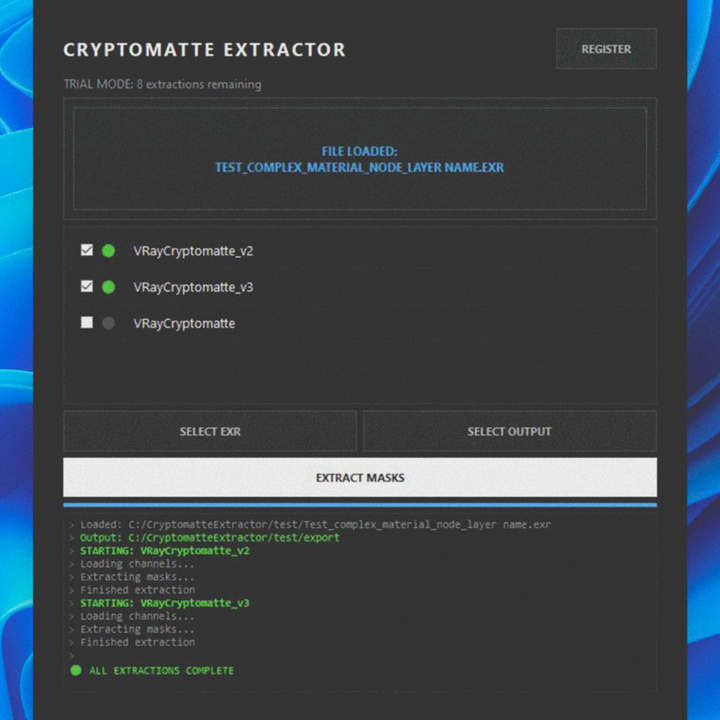
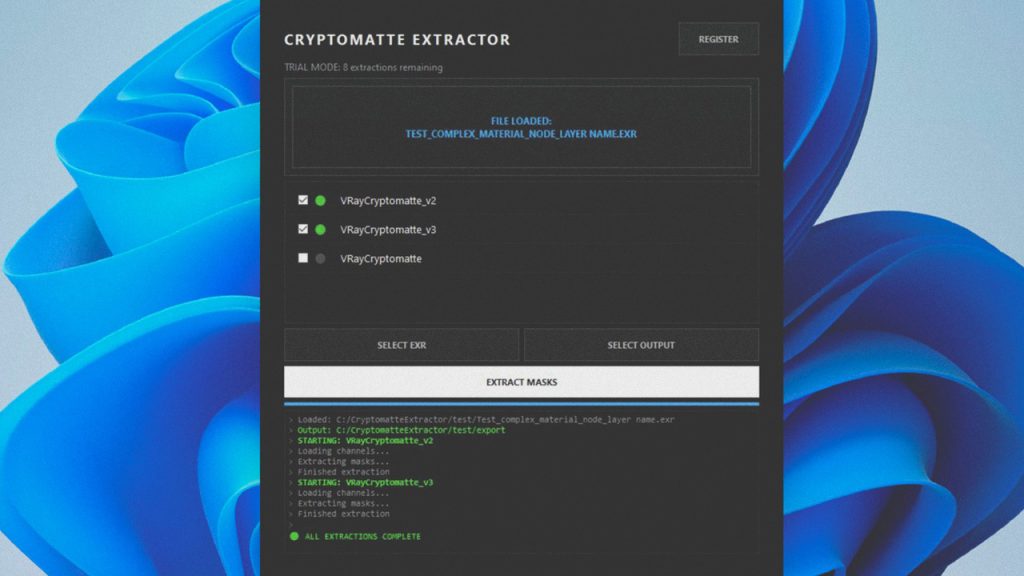
Cryptomatte Mask Extractor is a standalone Windows application that extracts Cryptomatte masks directly from EXR files and exports them as clean PNG masks ready to use in virtually any image editor.

That includes: Photopea, GIMP, Krita, Pixlr, Darktable, Affinity, Photoshop, and many others.

The workflow is intentionally simple:
drag & drop your EXR, select the Cryptomatte layers you want, and export the masks instantly.

Key Features

  • Drag & drop workflow
  • Fast object/material mask extraction
  • Automatic Cryptomatte manifest scanning
  • Clean anti-aliased PNG masks
  • Batch extraction
  • Organized subfolder output
  • Smart versioning system
  • Optimized for large EXR files
  • Artist-friendly interface

If you work with Corona Renderer, V-Ray, Blender, Arnold, Redshift, Octane, or Unreal Engine, this tool gives you a fast and flexible way to bring Cryptomatte workflows into almost any compositing or image-editing pipeline.

What started as a personal workaround by a 3D artist turned into a practical production tool for the broader CG community.

The software includes a free trial with 10 extractions available before activation.

Get it on Gumroad: Cryptomatte Mask Extractor

Share

Introducing Scene Optimization Toolkit for 3ds Max

Working with heavy scenes in 3ds Max often means dealing with slow viewports, high memory usage, and long rendering times. These issues can interrupt your workflow and limit productivity, especially in projects with dense geometry, large textures, or multiple scenes to render.

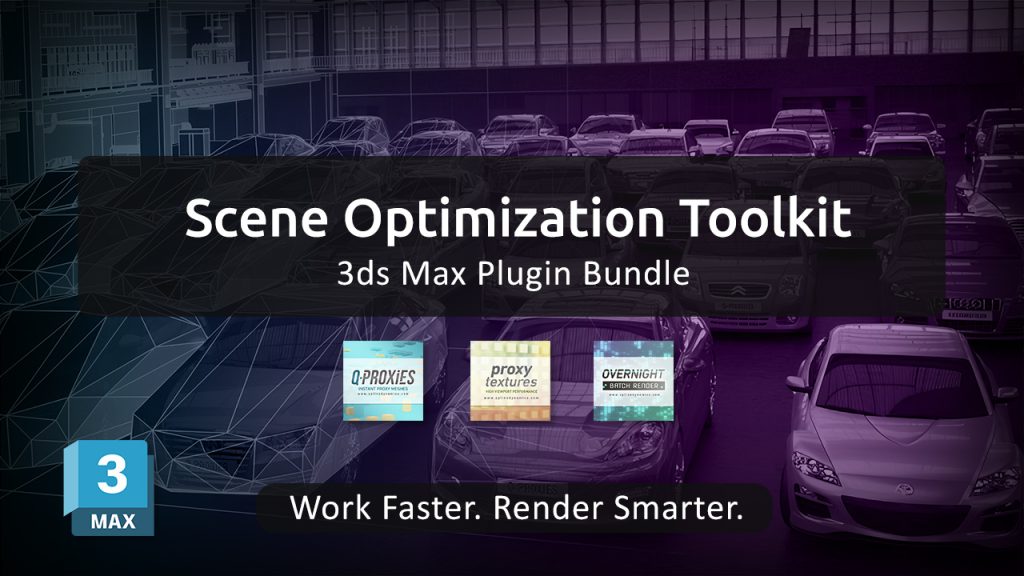
To address these challenges, we’re introducing the Scene Optimization Toolkit — a bundle of three specialized plugins designed to optimize performance across the entire workflow.

Instead of focusing on a single bottleneck, this toolkit provides a complete optimization pipeline:

Q-Proxies
Convert high-poly geometry into lightweight, renderer-independent proxies. This allows you to keep your scenes responsive while working, without affecting final render quality.

Proxy Textures
Create lower-resolution versions of your textures to reduce memory usage and improve viewport performance, especially in scenes with large environments or extensive material libraries.

Overnight Batch Render
Automate the rendering of multiple scenes, cameras, or states. Set up your render queue and let your machine process everything sequentially, saving time and avoiding manual intervention.

Together, these tools target the three main sources of slowdowns in 3ds Max:
geometry complexity, memory consumption, and rendering workflow inefficiencies.

The result is a smoother, more efficient workflow that allows you to handle complex scenes with greater control and stability — without compromising output quality.

The Scene Optimization Toolkit is currently available with a 30% discount compared to purchasing each plugin individually, making it a practical solution for artists and studios looking to streamline their production process.

Learn more and get the toolkit: https://www.splinedynamics.com/scene-optimization-toolkit/

Share

Introducing the Spline Workflow Toolkit – 5 Powerful 3ds Max Plugins in One Bundle

The Spline Workflow Toolkit is a new bundle of 5 professional plugins for 3ds Max designed to simplify and accelerate spline-based workflows.

If you regularly work with imported CAD files or complex spline shapes, you know how time-consuming it can be to clean up geometry, fix broken splines, and manage large amounts of curve data. This toolkit brings everything together into a single, efficient solution.

What’s included

  • Spline Cleaner – Clean, repair and batch-process splines. Essential for CAD and vector imports.
  • Spline Combiner – Perform boolean operations, cut shapes, and control intersections.
  • Spline Refiner – Uniform spline subdivision while preserving shape. Process hundreds of curves in seconds.
  • SubSpline – Advanced subobject selection and material ID management. Ideal for RailClone workflows.
  • Spline Data – Real-time spline diagnostics with detailed geometry insights.

What you can do

With the Spline Workflow Toolkit, you can:

  • Repair broken and overlapping splines instantly
  • Remove unnecessary vertices without losing shape
  • Edit multiple splines at once
  • Merge spline objects seamlessly
  • Control spline segmentation with precision

Whether you work in Architectural Visualization, Industrial Design, Motion Graphics, or CG Animation, this toolkit helps eliminate the most repetitive and time-consuming parts of spline-based work.

One-time payment. Lifetime license included for all tools

Learn more and get the bundle here:
https://www.splinedynamics.com/spline-workflow-toolkit/

Share

Free Trials for All SplineDynamics 3ds Max Plugins on Gumroad

All SplineDynamics 3ds Max Plugin Trials

We’re excited to announce that free trials for all SplineDynamics 3ds Max plugins are now available on Gumroad.

This makes it easier than ever to explore and test our tools through a new platform, with a simple download experience and quick access to updates.

The following plugins – and also some free scripts – are now available for you to try:

3D Measure Master, Hierarchy Guardian, Spline Cleaner, Spline Combiner, SuperHelix, TurboSplines, RandoMixer, Scatter Tools, Q-Proxies, Proxy Textures, Overnight Batch Render, and Showcaser.

Each trial allows you to evaluate the workflow improvements and performance benefits before purchasing.

Download trials (Gumroad)

Share

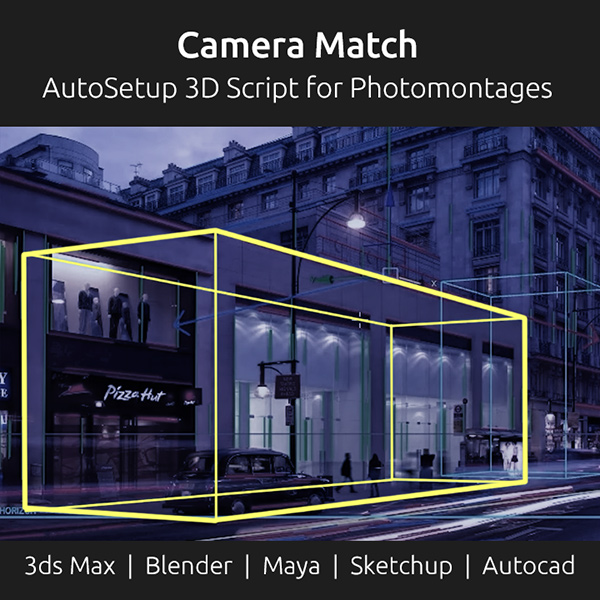
New Camera Match AutoSetup 3ds Max Script

A new camera matching tool for 3ds Max and other 3D applications is making camera matching from photos faster and more accurate than ever.

Camera Match AutoSetup v6 is an automated script that streamlines the photomontage process by detecting perspective directly from a single image and generating a perfectly aligned 3D camera in seconds.

Using advanced computer vision algorithms, the tool automatically detects vanishing points and horizon lines, removing the need for manual camera setup and reducing the time required to align 3D scenes with photographic backplates.

One of the key strengths of Camera Match AutoSetup is its ability to create properly configured Physical Cameras with accurate field of view, ensuring consistent perspective and realistic integration between 3D elements and real-world images. It also matches the render output resolution to the background image, helping maintain precision throughout the workflow.

Developed by renowned archviz artist and author Jamie Cardoso, Camera Match AutoSetup is available as dedicated versions for multiple 3D applications, including 3ds Max, Blender, Maya, SketchUp, and AutoCAD.

Additional features include automatic horizon line visualization and viewport background setup with overlay guides, making it a practical solution for photomontage and camera matching tasks.

For artists working with photo-based scene integration, tools like this can significantly speed up production while improving accuracy.

Get it here: Camera Match AutoSetup.

Share