Tired of tweaking hundreds of materials by hand in 3ds Max?
Material-related tasks can become surprisingly repetitive and time-consuming when you’re working on large scenes. Adjusting the look of multiple materials, matching vegetation to a particular mood, or getting wood grain properly aligned across a large number of boards are some examples.
These three professional 3ds Max tools from One Click Tools save you from dealing with endless nodes in the 3ds Max Material Editor or tedious work in the Unwrap UVW Editor: Remate, Foliage Tint Master, and WoodFlow.
1. Remate — A Material Remote for 3ds Max
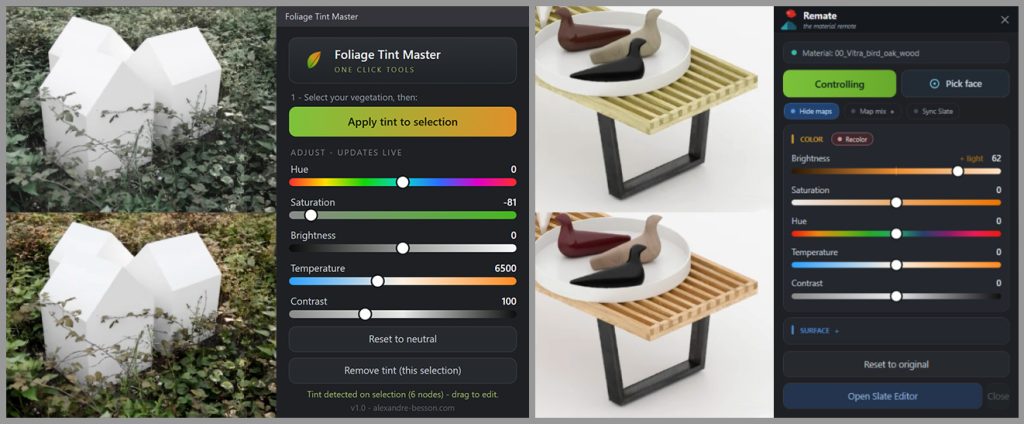
What if you could simply click a surface in the viewport and immediately start adjusting the material behind it?
That’s the idea behind Remate.
Instead of hunting through Multi/Sub materials or navigating complex node trees, you can click a face in the viewport and Remate identifies the corresponding material and brings its controls into a dedicated panel.
From there, you can adjust parameters such as brightness, saturation, hue, temperature, contrast, glossiness/roughness, bump and displacement, while working with Corona or V-Ray interactive rendering.
One particularly interesting feature is its relative per-material workflow. If you select multiple objects with different materials, Remate can preserve their individual variations instead of flattening everything to a single value.
And if you don’t like the result, the original material can be restored with a pixel-exact reset.
This tool is ideal for ArchViz and other 3ds Max workflows where materials need to be adjusted repeatedly during look development or client revisions.
Compatibe with 3ds Max 2021 or higher. Corona 9+ / V-Ray 6+
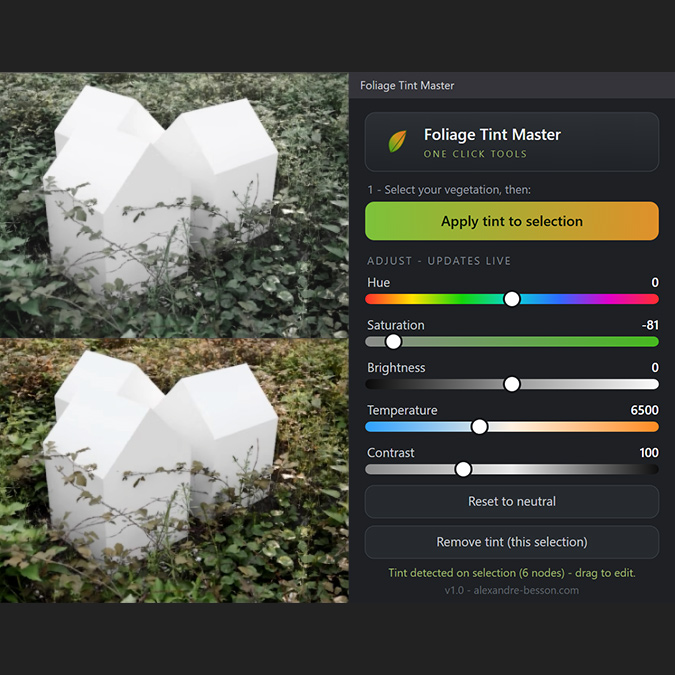
2. Foliage Tint Master — Fast Vegetation Grading
Your vegetation is too green, too saturated, or simply doesn’t match the mood of the scene?
This is a very common ArchViz problem — especially when working with vegetation libraries created for different scenes or lighting conditions.
Foliage Tint Master takes a very straightforward approach: select your vegetation, apply the tint, and adjust it using a set of dedicated controls.
You can work with Hue, Saturation, Brightness, Exposure, Temperature and Contrast, with the changes visible live under Corona or V-Ray interactive rendering.
The tool also supports per-channel tinting for albedo and translucency, as well as variation between instances and leaves, which can be useful when a vegetation scatter looks too uniform.
The workflow is non-destructive: the original textures aren’t modified, and the tint can be removed when needed.
This tool is ideal for ArchViz artists who regularly work with large vegetation setups and need to quickly adapt foliage to different scenes, seasons or lighting conditions.
Compatibe with 3ds Max 2024 or higher. Corona or V-Ray
→ Learn more about Foliage Tint Master
3. WoodFlow — Instant Wood Grain Mapping
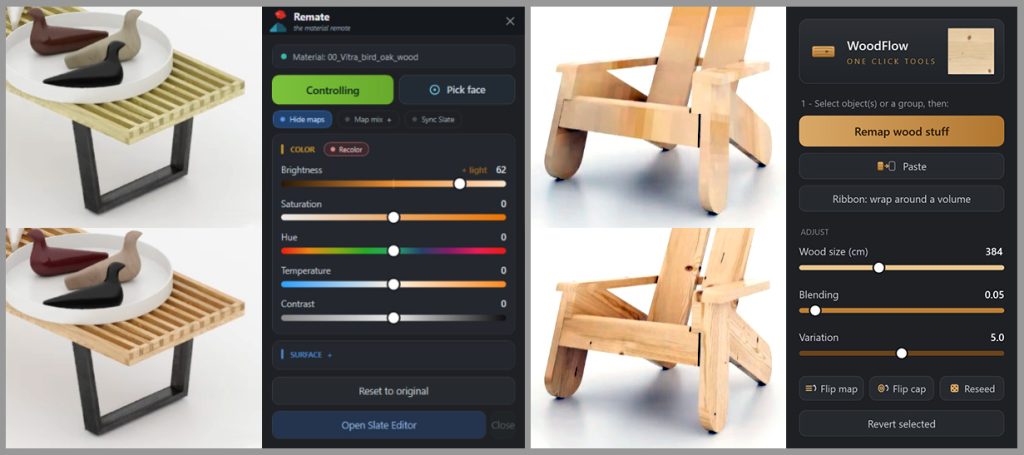
Wood grain is easy to get wrong when every board needs a different orientation.
Instead of manually unwrapping individual boards and then correcting the orientation of the texture, WoodFlow analyzes the geometry and automatically aligns the wood grain along each board, plank or slat.
The same approach can be used from a single board to larger architectural elements such as wood-clad facades.
It’s one of those tools where the benefit is immediately apparent when you see it in action: less UV setup, less repetitive correction, and a more consistent result.
Idel for Architectural visualization and other 3ds Max projects involving a significant amount of wood geometry.
Compatibe with 3ds Max 2025 or higher
Affiliate Disclosure
This page may contain affiliate links. If you decide to purchase through them, we may earn a commission at no extra cost to you. These commissions help support the creation of free tutorials, articles, and tools on Spline Dynamics. We only recommend products that we believe provide real value to the CG and ArchViz community.