Index
- Version Requirements / License / Installation
- Overview
- Main Tools
- Settings / Global Adjustments
- Per-Measure Parameters
- Export To CSV
- Other Considerations
- Help/About
- Contact/Support
1.1 Version Requirements
3dsMax 2016 and higher.
3D Measure Master has been tested succesfully on 3dsMax 2016 to 2026. It should also work properly on future versions. However, if you experience any issue, please report it to contact@splinedynamics.com
1.2 License
With every purchase you get a lifetime license. It’s a node-locked license.
The Regular License lets you use the product in 2 different workstations. It comes with 2 license keys (1 domain per key).
The Corporate License allows you to activate the plugin on up to 10 workstations. It comes with 2 license keys (5 domains per key).
You will get free upgrades for the same major version of the product.
1.3 Installation
- Unzip the content of the .zip file and then drag the “.mzp” file onto one of your viewports in 3ds Max . The plugin automatically installs itself.
- A dialog called “Software Activation” pops-up. Enter your license key in the text field. (You received 2 license keys by email when you purchased the product).
- If the license key is correct, the plugin will start.
- To add the plugin’s icon to a toolbar, go to the Menu > Customize > Customize user interface…
- Go to the “Toolbars” tab and pick the category “Spline Dynamics”.
- The plugin’s name (“3D Measure Master”) must be listed there. Just drag it onto a toolbar and you’re done!
2. Overview
3D Measure Master is a professional 3ds Max plugin that lets you measure any element in your scene with true CAD-style precision.
It provides 5 specialized measurement tools to calculate distances, angles, radii, diameters and bounding boxes directly in 3D space — using real geometry instead of 2D overlays.
All measurements are created as editable 3D splines and TextPlus objects, so they remain fully interactive and renderable in your scene.
You can adjust their appearance globally or individually, export all data to CSV, and even render your measurements directly for technical visualization, archviz, or product design presentations.
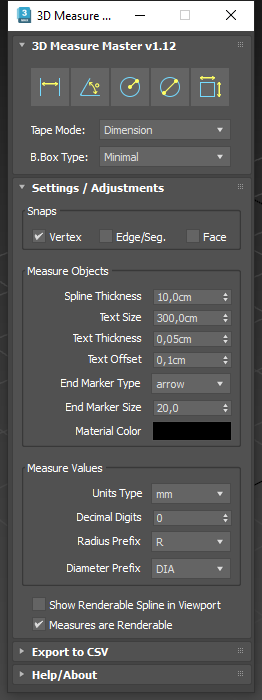
The User Interface (UI) has 4 rollouts. They are, from top to bottom:
– Main Toolbar
– Settings / Adjustments
– Export to CSV
– Help / About
We will see them in detail in the following sections.
3. Main Tools
The Main Toolbar gives access to 5 dedicated measurement tools:
Tape, Angle, Radius, Diameter and Bounding Box.

Each tool is interactive and easy to use:
- Click to pick one or more points in your scene (depending on the tool).
- Drag to define the projection or placement of the spline that represents the measure.
- The measurement will automatically appear as a spline with text showing its numeric value.
All tools can be used either on orthogonal or perspective/camera views.
While you are using any of the tools (except for Bounding Box tool), the script temporarily activates 3ds Max snapping for you to accurately pick specific points or places. You can choose which of the 3 snapping options to use at that time (vertex, edge, face), but the vertex snap alone is ideal for most cases. That’s the default option.
All measurements are placed in real 3D space, respecting your current view (Perspective or Orthographic).
Tape / Distance Tool
Measure the distance or world-axis dimension between 2 points in 3D space.
This tool has 2 modes, which you can define from the Tape Mode dropdown list (below the main toolbar):
– Dimension (default). World-aligned, orthogonal measurement.
– Distance. Direct point-to-point measurement. Unrestricted direction.
Usage:
- Click 2 points to define the measure distance or dimension.
- Drag to define the spline projection plane.
- When ready, click to finish.
The resulting spline represents a straight segment with its length displayed above it.
Angle Tool
Measure angles by picking 3 points in space.
Usage:
- Click 3 points: the first and third define the legs of the angle, and the second defines the vertex.
- Drag to control where the arc and the value label appear.
- When ready, click to finish.
The plugin automatically draws a visible arc showing the measured angle in degrees. You can adjust the size of the arc later, from the measure parameters, with the Spline Projection control.
Radius Tool
Measure the radius of an arc, round corner or circular shape, by picking 3 points on the round edge of the object.
Usage:
- Click 3 points on the round edge or curve
- Drag inward or outward to define the position of the measure object.
- When ready, click to finish.
Diameter Tool
Measure the diameter of a circular shape or surface, by picking 3 points on the edge.
Usage:
- Click 3 points on the circular edge or curve.
- Drag to define the spline/text projection.
- When ready, click to finish.
A straight line and label appear showing the diameter value.
Bounding Box Tool
Measure all the dimensions of a 3D model or shape with a single click.
When used on orthogonal views, it will represent 2 dimensions. On 3D views, the three dimensions.
Usage: Press the tool button and pick any object in your scene.
The plugin generates a rectangular or box-shaped measurement showing the object’s overall size along X, Y, and Z axes.
In Perspective view, the measurement appears as two adjacent box faces (the farthest from the camera); in Orthographic views, it appears as a clean rectangular outline.
You can choose between 3 different styles of bounding box representation. This is done from the B.Box Type dropdown list:
- Minimal. Only the essential lines (one for each dimension)
- Rectangles. A more classic version using rectangles.
- Multi-Tape. Independent tape-style measurements for each dimension.
4. Settings / Global Adjustments

The Settings panel lets you define all global parameters that affect the appearance and behavior of every measurement object.
They instantly affect both existing and new measurements in the scene.
You can adjust the following settings:
Spline thickness
Controls line width for all measurements.
Text size
Overall size of the TextPlus value labels.
Text thickness
The amount of extrusion for the TextPlus meshes.
Text offset
Distance between text and the measurement spline.
End marker type
End markers are 3D shapes that define the endpoints of the measurement spline.
You can choose between 4 styles: Arrow, Sphere, Cube, or None.
End marker size
Adjust the 3D size of the markers.
Measures material color
Sets the color used by all measurement objects. It is driven by a global material.
Units type
Switch between meters, centimeters, millimeters, feet (decimal), inches (decimal) , feet + inches (1/8″ fractions), or inches (1/8″ fractions). This is independent from 3ds Max global units system.
Decimal digits
Define the precision of numeric values (0 to 2 decimals).
Radius prefix
Choose how the “radius” word is displayed (R, r., rad), preceding the radius value.
Diameter prefix
Choose how the “diameter” word is displayed (DIA, d., diam.), preciding the diameter value.
Show renderable splines in viewport
Toggle spline viewport rendering visibility.
Renderable measures toggle
Enable or disable rendering for all measurement objects globally.
5. Per-Measure Parameters

Each individual measurement can have its own set of parameters.
Select a measurement from scene to edit its attributes independently from the global settings.
Available parameters:
Spline projection distance
Defines how far the spline is projected from the reference plane. For angles, it defines the size (radius) of the arc.
This parameter is not enabled for Bounding Box type.
Spline thickness
Line width for that specific measure.
Match Neighbour Measure
This button adjusts the selected measurement spline to match the spline projection length of the nearest measurement object. Will be considered neighbour measurements those that have at least a start or end point in common.
Text size
Font scale of the value label.
Text kerning
Spacing between characters.
Text leading
Spacing between lines in multiline text. (See Custom text description below)
Text offset from spline
Distance between the label and the spline segment.
Measurement Notes
You can write additional comments or descriptions in the textbox, to be displayed as 3D text below the measure value.
Use the text offset, leading and kerning parameters explained above to adjust the appearance of this text.
Notes replace value
If this option is checked, the measurement value will be hiden. It will show only the custom notes.
Lock/Unlock transform
Prevents accidental movement or rotation of the measurement object.
There are some cases where you might temporarily unlock object transforms. For example:
Sometimes you may want to adjust a little bit the position of the measure object in order to prevent overlapping with other objects in the scene.
Update measure value
Recalculates and refreshes the numeric value after object or scene changes.
Very useful if you want to link the measure object to a scene object and then you scale that object. Then you can press this button to update the value of the measure.
These per-measure controls let you customize key dimensions individually, without affecting the rest of the scene.
6. Export to CSV

The Export to CSV rollout lets you manage all measurements in your scene through a clear, organized table and export their values for external use or documentation.
When you select one or more measure objects in the scene, the corresponding items in the table are highlighted in yellow.
The table contains 2 columns:
Label: the name or description of the measurement (editable).
Value: the current numeric result, including its measurement units.
You can perform the following actions directly in this panel:
Edit Labels
Click in the Label cell to rename or describe each measurement. This is useful for identifying specific distances, parts, or objects in your scene.
Delete Selected Measures
Select one or more rows and press the Delete button to remove those measurements both from the list and from the 3ds Max scene.
Refresh
Reloads the current measures in scene.
Export to CSV
Click Export CSV to generate a comma-separated file containing all measurement data (Labels and Values).
The exported file is fully compatible with spreadsheet and documentation software such as Microsoft Excel, Google Sheets, or OpenOffice Calc, allowing you to create detailed technical reports, validate dimensions, or share information with clients and collaborators.
All exported values include the current units and precision defined in your global settings.
7. Other Considerations
Measure layers
All measurement objects are automatically placed in a dedicated layer called “Measures“. And each individual measurement object it’s placed in its own layer, which is a child layer of Measures.
This way you have full control over the visibility and renderability of each of measure object in scene.
Measure objects as 3ds Max groups
Each 3D measurement produced by this script is composed of a set of native 3ds Max objects (splines, TextPlus, helpers, meshes), which are gathered into a standard 3ds Max group and provided with dedicated custom attributes/parameters.
We strongly recommend not to modify or alter this groups in any way. That might cause undesired behaviours or break the script’s functionality.
Per-Measure Parameters outdated or not working
Sometimes you may find measurement objects in a scene that contain broken or missing features. These objects were likely created with an older version of the script and are not fully compatible with the latest release.
Starting from version 1.12, 3D Measure Master automatically detects and updates these legacy objects whenever needed.
8. Help / About section
This section includes help links and credits for this script.
9. Contact / Support
For customer support or making suggestions or business proposals, please don’t hesitate to contact us through this Contact Form.
You can also write us directly to contact@splinedynamics.com.
All feedback is greatly appreciated. We will try to answer all your inquiries as soon as possible.
Enjoy 3D Measure Master!
